


If you're planning on selling, trading, or even just giving your old iPhone away, there's one super important step you can't skip: removing your iCloud account. This isn't just a suggestion; it's essential for keeping your personal info safe.
Signing out of your Apple ID from the Settings app is how you officially cut ties between your personal life and the phone. It protects your data and, crucially, switches off a security feature called Activation Lock, making sure the next person can actually use the device. It's a simple process, whether you're here in Redhill or anywhere else.
Why You Need to Remove iCloud from Your iPhone

Before we get into the "how-to," let's quickly cover the "why." Think of your iPhone like your house. You wouldn't move out and leave all your photo albums, letters, and personal documents behind for the new owners, would you? Your iCloud account is the digital version of that, connecting all your most private information to that specific phone.
For a few key reasons, signing out properly is a must-do part of the process.
When to Remove Your iCloud Account
Sometimes it can be confusing knowing when you need to take this step. This handy table breaks down the most common situations.
As you can see, getting a phone ready for a new owner is the most common reason, and it requires the most thorough approach.
Protecting Your Personal Data
Your iPhone holds so much of your personal information. By signing out of iCloud, you cut the link between that device and everything you've stored in the cloud—photos, messages, contacts, notes, you name it.
This is a really important security step, whether you're selling your old phone online or passing it down to a family member in Merstham.
Key Takeaway: Forgetting to sign out is a surprisingly common mistake. It leaves a wide-open digital door to your private data, creating a massive privacy and security risk for you.
Disabling Activation Lock
Activation Lock is a brilliant anti-theft feature linked to the Find My service. When it's on, nobody can erase or reactivate your iPhone without your Apple ID password. It's a lifesaver if your phone is lost or stolen, but it turns the device into a paperweight for a new owner.
If you’re hoping to sell your device to a service like us at EXE, disabling this lock is an absolute must. The good news is that removing your iCloud account correctly handles this for you automatically. It makes the whole handover process smooth and secure for both you and the buyer.
Ready to get started? We’ll walk you through everything, step by step. If you're looking to sell, you can always get an instant quote by filling out our simple sales form.
How to Safely Sign Out of iCloud on Your iPhone
Right, let's get started. Removing your iCloud account from an iPhone is surprisingly simple once you know where to look. It’s like packing up your personal belongings before moving house, making sure you don't leave anything important behind for the next owner.
First things first, grab your iPhone and head straight to the Settings app. You’ll see your name and profile picture right at the top – that’s your Apple ID section. Give it a tap.
Now, just scroll all the way to the bottom of that screen. You can't miss it: a big red 'Sign Out' button is waiting for you there. Go ahead and tap it. Your iPhone will then ask for your Apple ID password, which is a key security check to make sure it’s really you.
This is the screen you're looking for – it's pretty clear once you know where to go.
As you can see, the 'Sign Out' option is the very last one, so just keep scrolling until you hit the bottom.
What Happens When You Sign Out?
Once you pop your password in, you’ll get a prompt asking if you want to keep a copy of certain data (like your contacts or calendar) on the phone itself. If you're preparing the phone to sell or give away, you'll want to say no to this. Don’t worry, this only removes the copy from the device – all your original information stays perfectly safe in your iCloud account, ready for your next device or any web browser.
A Quick Tip From Us: Forgotten your password? It happens to the best of us. Apple makes it easy to recover. Just tap the "Forgot your password?" link when it appears, and you’ll be walked through the steps to reset it.
And that's it! Your iCloud account is officially disconnected from the device. This is the biggest and most important step in preparing your phone for a new owner. Whether you're in Redhill, Merstham, or anywhere else nearby, following these steps ensures your data stays yours.
If you’re thinking of selling, you can get an instant quote by filling out our simple sales form.
Dealing With the iPhone Activation Lock
Activation Lock is one of Apple's cleverest security measures. It's tied directly to the Find My service and is designed to stop anyone from using your iPhone if it ever gets lost or stolen. It’s great for protecting your data, but it can be a real headache if you've just bought a second-hand iPhone that's still linked to the previous owner's account.
Here’s a classic scenario: you find a great deal on a used iPhone online or locally in Merstham. You get it home, turn it on, and are immediately hit with a screen asking for an Apple ID and password you simply don't have. That's Activation Lock working as intended, and it basically turns your new phone into a very expensive paperweight until it's sorted.
It's a surprisingly common problem, but thankfully, there are a few proper ways to fix it.
So, You're Faced with an Activation Lock. What Now?
By far the easiest and most direct way is to get in touch with the person who sold you the phone. This is your best first move.
The original owner doesn't even need the phone in their hands to sort this out. They can remove the device from their account remotely from any web browser. Just ask them to log into iCloud.com, go to the Find My section, select the iPhone from their device list, and click 'Remove from Account'. Once they do that, the lock is lifted, and you can set the phone up as your own. Simple as that.
What if you can't get hold of the seller? Your next port of call should be Apple Support. Be prepared, though – you'll need to prove you own the device. This means providing the original proof of purchase, like a receipt or invoice that clearly shows the phone's serial number. If you have that paperwork, Apple's team should be able to help you out.
A Quick Word of Warning: A quick Google search will bring up dozens of websites and third-party tools promising to bypass Activation Lock for a fee. We strongly advise you to steer clear of these. They are often unreliable, can put your data at risk, and might even be illegal. Always stick to the official ways for a safe and guaranteed solution.
Ultimately, your options depend on one simple question: do you have the Apple ID password? This little flowchart breaks down the two main paths you can follow.
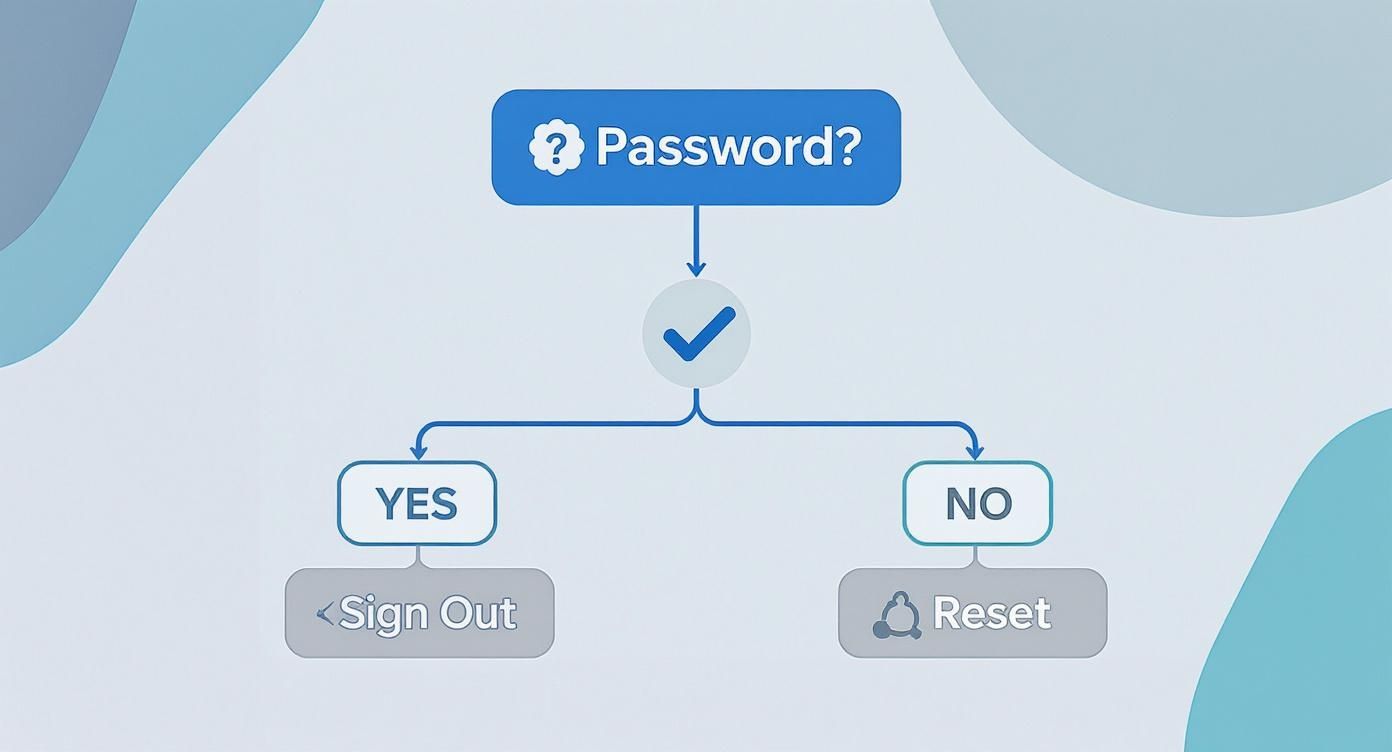
As you can see, knowing the password makes it a straightforward sign-out process. If you don't have it, you're looking at a password reset, which is a different kettle of fish entirely.
Even if you're stuck with a locked device you can't get into, we might still be able to help. Here at our shop in Redhill, we buy broken and faulty devices, including those with activation issues. Get in touch by filling out our sales form, and we’ll give you a fair quote.
Removing an iPhone from iCloud Remotely
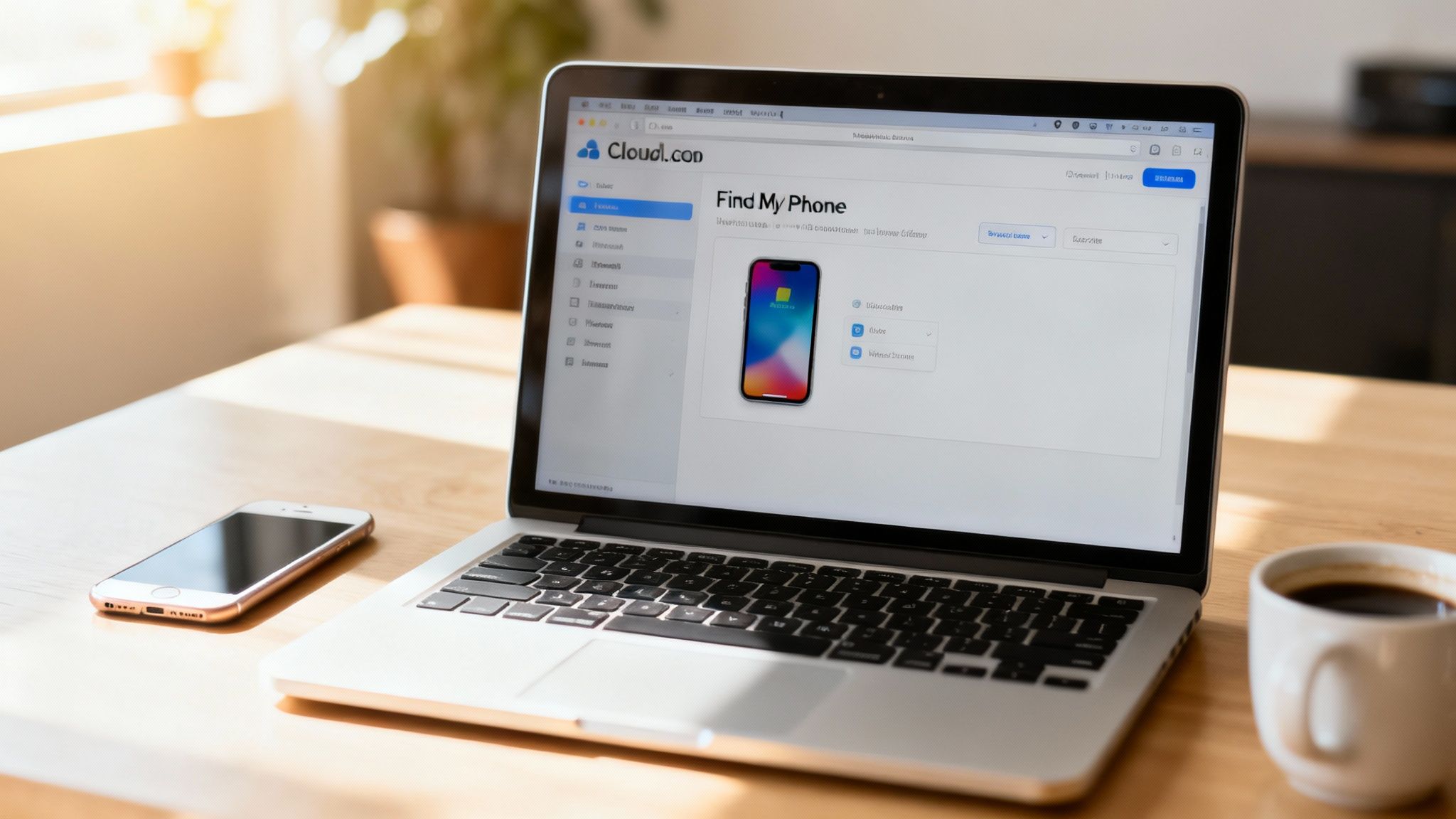
It’s a situation we see all the time. You’ve just sold your old iPhone or given it to a family member over in Reigate, and a sinking feeling hits you: you forgot to sign out of iCloud. Don’t panic. It happens to the best of us, and thankfully, you don’t need the phone in your hands to sort it out.
You can do everything you need from any computer, which is a real lifesaver when it comes to protecting your personal data and letting the new owner actually use their "new" phone.
Using Find My on iCloud.com
Your best friend here is Apple's Find My service, which you can get to right from the main iCloud website. Here’s a quick walkthrough of what you need to do.
- Log In: Head over to iCloud.com in any web browser and sign in with your Apple ID and password.
- Open Find My: Once you're in, look for the 'Find My' icon. It’s the one that looks like a green radar screen.
- Select Your Device: Near the top of the screen, you'll spot a dropdown menu called 'All Devices'. Just click this and pick the iPhone you need to remove from the list.
Once you’ve selected the phone, a small window will pop up with a few options. This next part is really important, as you’ll need to do two separate things to get the job done properly.
First You Erase, Then You Remove
The first thing you must do is click 'Erase iPhone'. This command tells the phone to wipe all of your personal data the very next time it connects to the internet. This is what protects your photos, messages, and contacts from prying eyes.
After the erase has finished (or even if the phone is still offline), the next step is to click 'Remove from Account'. This is the final, essential action that fully unlinks the device from your Apple ID and turns off Activation Lock, freeing it up for the new owner.
Skipping that second step is a common mistake. It's estimated that in the UK, less than 5% of users fully remove their old devices from their accounts, often because Apple’s services are so well integrated that it’s easy to forget. You can read more about how Apple integrates these features seamlessly on their support site.
And if you’re looking to sell your old tech without any of the faff, we’re right here in Redhill to help. Get a quick, no-obligation quote by filling out our simple sales form.
Getting Your iPhone Ready for Its New Home
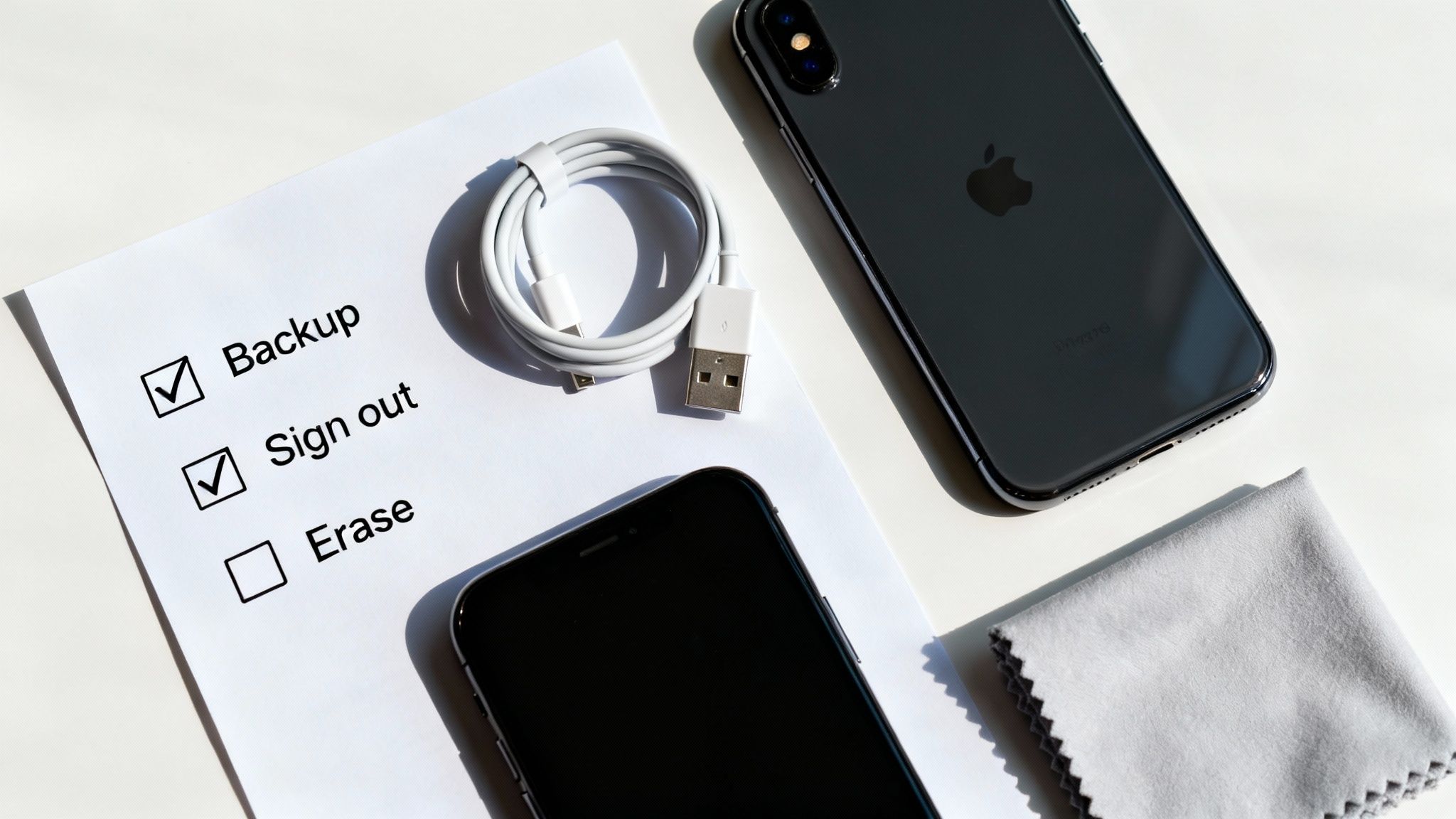
So, you're planning to sell your old iPhone? Whether you're bringing it to our shop here in Redhill or selling it online, a complete, secure wipe is a must. This isn't just about protecting your own privacy; it's also about giving the new owner that fresh-out-of-the-box experience.
Running through a quick checklist is the best way to make sure you don't forget anything important. Let's make this handover as smooth and secure as possible.
First Things First: Secure Your Data
Before you even think about wiping the device, you need to back up everything you want to keep. It's so easy to forget this step and accidentally lose years of photos, contacts, and messages.
You've got a couple of solid options for backing up your iPhone:
- Back Up to iCloud: This is usually the simplest way. Just make sure you're on a stable Wi-Fi network, then head to
Settings > [Your Name] > iCloud > iCloud Backupand tap ‘Back Up Now’. - Back Up to a Computer: If you prefer a local copy, connect your iPhone to your Mac or PC. You can then use Finder (on newer macOS versions) or iTunes to create a full backup right on your computer's hard drive.
The Final Steps Before You Sell
Once you're happy all your data is safely tucked away, it's time to prep the phone itself. This means properly removing your iCloud from the iPhone to avoid any headaches for the next person.
Go back into Settings > [Your Name] and scroll all the way to the bottom to tap 'Sign Out'. This single action is what deactivates Activation Lock and unties the device from your personal account.
Finally, you'll perform the full factory reset. Go to Settings > General > Transfer or Reset iPhone and choose 'Erase All Content and Settings'. This is the point of no return—it completely wipes the slate clean, just like it was when you first took it out of the box.
Protecting your data has never been more critical. It's worth noting that data security is an ever-changing area. For instance, Apple recently had to disable its Advanced Data Protection for new UK users following a government order, which affects the end-to-end encryption of some iCloud backups. You can get the full story on this UK iCloud data change on MacRumors.
With your phone fully wiped and ready for its next adventure, have you considered what it might be worth? Fill out our simple sales form to get a quick valuation from us.
Got Questions About Removing iCloud?
We get asked about this all the time by customers from Redhill and the surrounding towns. It can seem a bit confusing, so here are some friendly, straightforward answers to the questions that pop up most often.
Will I Lose My Photos if I Remove My iPhone from iCloud?
Don't worry, your photos are safe! When you sign out of iCloud on your iPhone, all your data—photos, notes, documents—stays right where it is in your iCloud account. You can still access everything from iCloud.com or any other Apple device you own.
Your iPhone will ask if you want to keep a copy of certain data, like your contacts, on the device itself. But the main thing to remember is that signing out on the phone doesn't delete anything from the cloud.
What’s the Difference Between Signing Out of iCloud and Erasing My iPhone?
This is a great question, and the difference is really important.
- Signing out is like logging out of an account. It simply disconnects your iPhone from your Apple ID and turns off features like Find My. Your data is still on the phone.
- Erasing ('Erase All Content and Settings') is the big one. This wipes the device completely clean, deleting all your apps, photos, messages, and personal settings, returning it to its original factory state.
If you're selling your phone, you absolutely need to do both. Sign out first, then erase it. It’s the only way to ensure your data is secure and the next owner gets a fresh start.
Is It Possible to Remove iCloud from an iPhone Without the Password?
In short, no. You absolutely need the Apple ID password to sign out of an iCloud account. This is a crucial security measure to stop thieves from wiping and reselling a stolen device.
If you’ve forgotten your own password, you’ll have to go through Apple’s official recovery process. If you’ve bought a second-hand phone that’s still locked to the previous owner's account, only they have the power to remove it. There’s no easy way around this.
Whether you’re in Redhill or Merstham, if you're ready to sell your old tech, EXE makes it easy.
Get a fast, fair, no-obligation quote by filling out our simple sales form.