


So, you're ready to sell your iPhone and get some cash for it. That's great! But before you do, there’s one absolutely critical step you can't skip: removing your iPhone from iCloud. This isn't just about logging out; it's about protecting your personal data and giving the next owner a completely fresh start.
Your Guide to Removing an iPhone from iCloud
Getting your iPhone ready for its new home is a bit like tidying up your house before you hand over the keys. You need to make sure all your personal stuff is gone. Properly unlinking the device from your iCloud account is the digital equivalent of that.
This process involves a few key things: turning off the 'Find My' feature, deactivating the powerful security measure called Activation Lock, and then completely wiping your personal information from the phone itself. It’s all part of mastering your device, from understanding the ins and outs of what gives Apple iOS and its unique feel, to managing your iCloud account like a pro.
Choosing Your Method
How you go about this really just depends on one simple thing: do you still have the iPhone with you?
As you can see, having the phone in your hands makes things a bit more straightforward. But don't worry, the remote option is a brilliant safety net if you've already sold or given the device away.
To make it even clearer, let's break down the two main approaches.
Quick Overview of iCloud Removal Methods
Here are the two primary ways to remove your iPhone from iCloud, depending on whether you have the device with you.
Both routes achieve the same goal, so just pick the one that fits your situation.
Why It’s So Important
If you're in Redhill, Merstham, or anywhere nearby, selling your old tech locally is a fantastic way to go. Here at EXE, we guarantee every device is handled securely, but that security process has to start with you. Taking just a few minutes to remove your iPhone from iCloud properly ensures the whole sale is smooth and safe for everyone involved.
By correctly unlinking your device, you ensure Activation Lock is disabled. This is non-negotiable for any reputable buyer, as it allows the new owner to set up the phone without being blocked by your old account details.
Ready to see what your old device is worth? Our simple sales form makes it easy to get a quote for your iPhone today.
Why This Step Is Non-Negotiable
You might see "remove iPhone from iCloud" on a checklist and think it's just another bit of tech admin. But honestly, it's one of the most important things you’ll do before selling your phone. Forgetting this step doesn’t just cause a headache for the next person; it can leave your personal data exposed and render the phone completely useless to its new owner.
Think of it this way: it’s like handing over the keys to your house but leaving all your photo albums, private letters, and bank statements inside. When an iPhone is still linked to your iCloud account, your entire digital life—from messages and contacts to photos and sensitive health data—remains tied to that device.
The Problem of Activation Lock
The most immediate hurdle is something Apple calls Activation Lock. This is a brilliant anti-theft feature that’s automatically switched on when you have 'Find My' enabled, linking the iPhone securely to your Apple ID.
If you sell the phone without turning this off, the new owner will hit a wall. They’ll be stuck on a screen demanding your Apple ID and password, and without them, they can't get any further. The phone becomes a very expensive paperweight. It’s for this exact reason that here at our shop in Redhill, we simply can't purchase a device that’s still locked to a previous owner's account.
Protecting Your Personal Data
Beyond the lock, there’s the even more serious issue of your privacy. Our phones are treasure troves of personal information, and keeping that data safe is everything.
It's worth noting that data protection isn't always set in stone. For example, Apple's recent removal of Advanced Data Protection in the UK has sparked conversations about the security of iCloud backups. This change means that data like photos, notes, and health information, previously protected by end-to-end encryption, is now more accessible on Apple's servers. This really drives home how vital it is to completely sever the connection to a device before it's out of your hands. You can read more about the UK's evolving data privacy landscape on EFF.org.
We see this happen all the time. A customer from Merstham or Redhill sells their old phone to a friend, but they forget to remove their iCloud account. Suddenly, the new owner’s photos and contacts start syncing with the seller’s account, creating a confusing and awkward data mix-up for both of them.
Taking a few moments to properly unlink your iPhone is the only way to guarantee a clean break. It protects you, gives the new owner a fresh start, and makes the whole selling process smooth and secure.
If you’re ready to sell your cleared device, get a quick and easy quote by filling out our sales form.
Removing iCloud Directly on Your iPhone

If you still have your iPhone with you, this is by far the easiest and most secure way to get it ready for sale. It’s a straightforward, two-stage process that properly signs you out of your account and then wipes your personal data for good. Getting this right is what deactivates the Activation Lock and leaves the phone in a perfect, factory-fresh state for its next owner.
Before diving in, we always recommend doing one final backup. It's a simple step that can save a lot of headaches later. You can back up to iCloud or your computer – either way, you’ll have a complete copy of your photos, messages, and settings ready for your new phone.
Starting the Sign Out Process
First things first, let's get you signed out of your Apple ID.
- Grab your iPhone and open the Settings app (the one with the grey cogs icon).
- Tap on your name, which you'll see right at the top. This opens up your Apple ID and iCloud settings.
- Now, just scroll all the way to the bottom until you see the Sign Out button. Go ahead and tap it.
You'll now be asked for your Apple ID password. This isn’t just a formality; it’s a critical security check. By entering your password, you're confirming that it's actually you, which is what gives the phone permission to turn off 'Find My' and release the Activation Lock.
If you’ve forgotten your password, don’t worry, it happens to the best of us. You can reset it using Apple's password recovery service. Whatever you do, don't skip this password step!
Erasing All Content and Settings
Once you've entered your password and successfully signed out, your iPhone is officially disconnected from your iCloud account. The final step is to securely erase all of your personal information from the device itself.
Head back to the main Settings screen and take the following path:
- Tap on General.
- Scroll right to the bottom and select Transfer or Reset iPhone.
- Choose Erase All Content and Settings.
Your iPhone will then give you a final summary of everything that’s about to be deleted – apps, data, settings, the lot. This is exactly what we want.
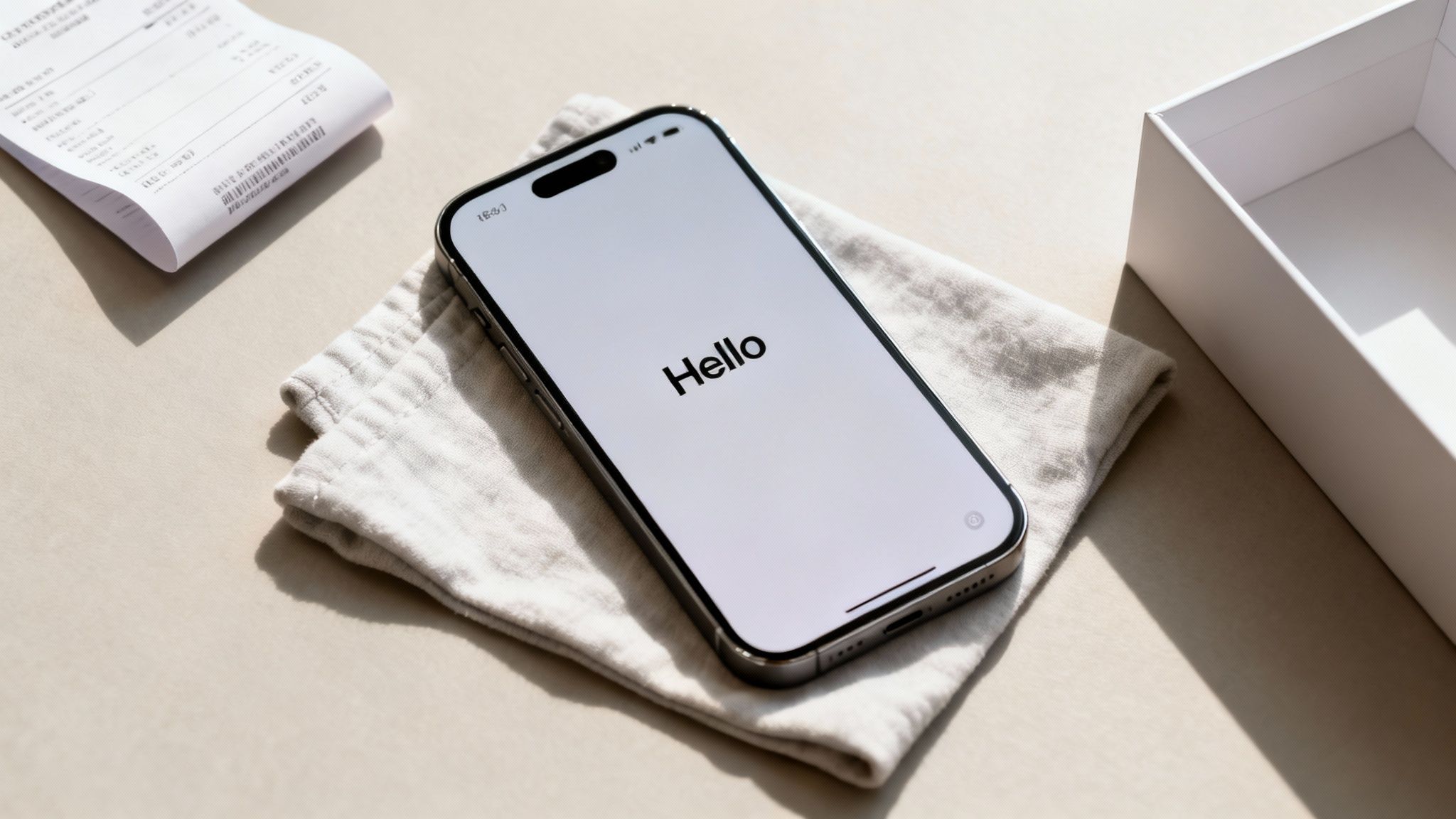
Confirming this is the point of no return for the data on this specific device. The phone will restart, and after a few minutes, you’ll be greeted by the iconic multi-language 'Hello' screen. That's your cue that the job is done correctly.
Seeing that 'Hello' screen is the ultimate peace of mind. It means your old iPhone is completely clean, unlinked from you, and ready for its new life. For anyone in Redhill, Merstham, or the surrounding areas, this is the condition we need the phone in. When you're ready, you can get a quick, fair quote by filling out our sales form. We keep the whole process simple and secure.
How to Remove an iPhone from iCloud Remotely
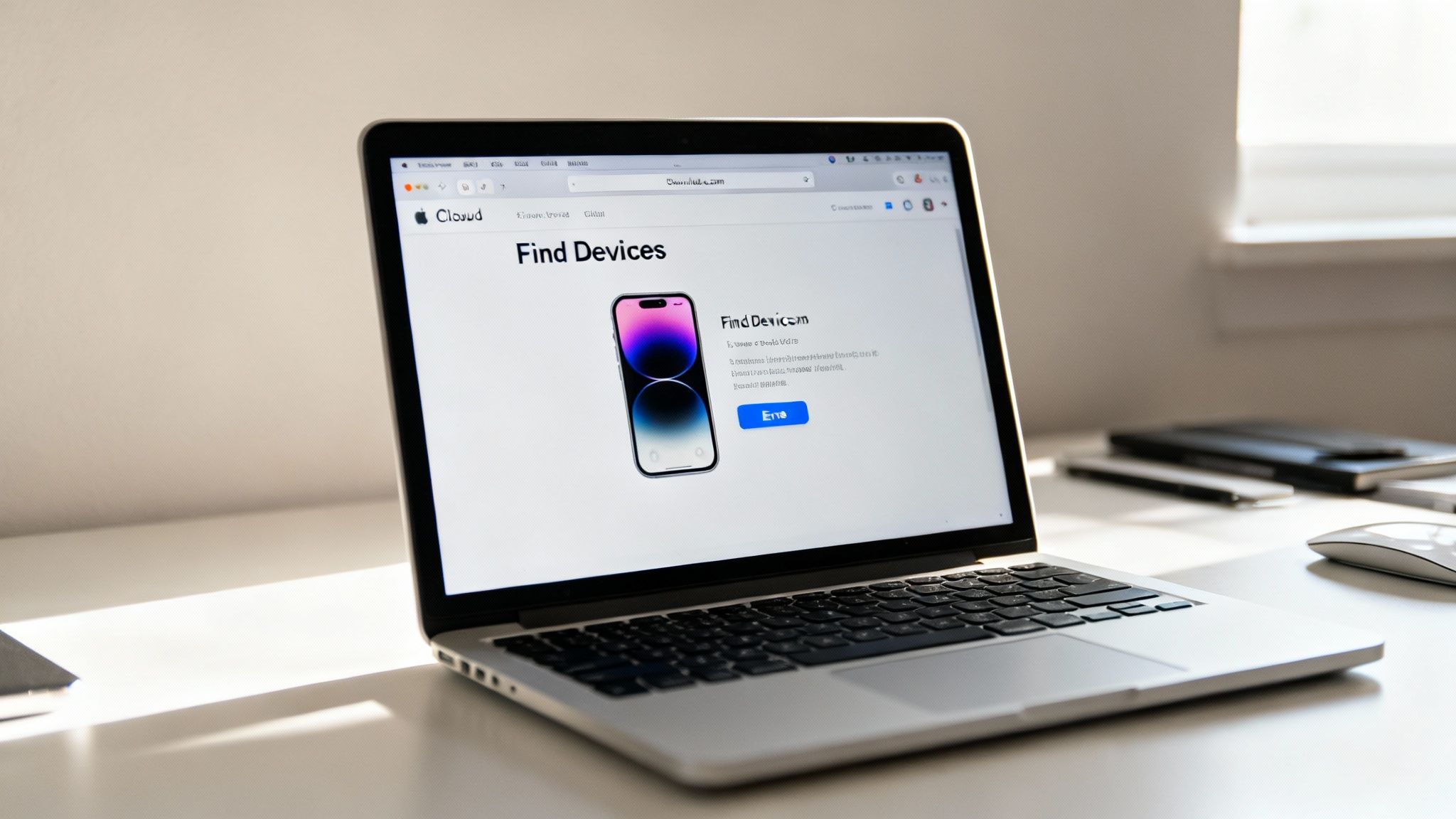
It happens more often than you'd think. In the rush of selling your old iPhone, maybe to a friend in Merstham or after dropping it off at our shop in Redhill, you realise you forgot one crucial thing: signing out of iCloud. Don't panic! You don't actually need the phone in your hand to sort this out.
You can securely remove the iPhone from your iCloud account using any web browser. This ensures your data stays safe and the new owner can set up the device without a hitch. It’s a vital safety net that protects your digital life, even after the phone is long gone.
This has become even more important recently. For instance, in a major shift in February 2025, Apple turned off its Advanced Data Protection feature for all UK users following a directive from the UK Home Office. This change affects the end-to-end encryption of iCloud backups, making it more critical than ever to be on the ball with your device security. You can discover more insights about Apple's ADP changes in the UK on Proton.me.
Finding Your Device on iCloud.com
First things first, you'll need to log into your iCloud account from a computer or another device.
- Head over to iCloud.com in any web browser.
- Sign in with your Apple ID and password. You’ll likely need to complete two-factor authentication if you have it set up.
- Once you're in, look for the Find Devices app and click on it.
A map will pop up showing the location of your Apple devices. You'll also spot a list labelled 'All Devices'—give that a click to see every phone, tablet, and computer tied to your account. Find the specific iPhone you want to remove and select it.
The Critical Two-Step Removal Process
Now, this is the part that needs careful attention. You'll see a few options, but you absolutely must perform them in the right order to successfully remove the iPhone from iCloud and turn off Activation Lock. Simply clicking 'Remove from Account' first will not work and will only cause headaches later on.
First, you must erase the device. Select Erase iPhone and follow the on-screen instructions. This sends a command to the iPhone, telling it to wipe all your personal data and settings completely. For this to happen instantly, the phone needs an internet connection (Wi-Fi or mobile data). If it's offline, the command will just sit in a queue, waiting to run the next time the phone connects.
Only after you’ve started the erase process can you then click Remove from Account. This second step is what officially severs the link between that device and your Apple ID, deactivating Activation Lock for good. Once that’s done, the new owner can set up the iPhone as if it were brand new.
By following these two steps in the correct order—erase, then remove—you guarantee a clean, secure handover.
If you've sorted this and are ready to sell your device, we make the next part simple. You can get an instant, no-obligation quote by filling out our easy sales form.
Get Your iPhone Ready to Sell
Right, you’ve done the tricky bit and successfully removed your iPhone from iCloud. The final step is getting it ready to sell, which is where the fun really starts! Here at our shop in Redhill, we’re all about making it simple for our customers in the local area to turn old tech into cash.
Think of it like getting a car ready for a viewing – a little bit of prep work goes a long way. Properly preparing your device doesn't just help us process your sale faster; it also guarantees you get the best possible price.
While you're at it, this is a perfect opportunity for a wider digital tidy-up. It's well worth learning how to delete old email accounts and secure your data, as it’s a massive step in protecting your long-term privacy.
A Quick Pre-Sale Checklist
Before you pop into our shop in Redhill or we arrange to collect your device from nearby towns like Merstham, running through these simple checks will make a world of difference.
- Dig out the proof of purchase: If you still have the original receipt or even the box, it’s always helpful to bring it along.
- Give it a gentle clean: Grab a soft, lint-free cloth and wipe down the screen and body. Getting rid of fingerprints and smudges helps us see its true condition.
- Be honest about its condition: Take a good look at your iPhone. Are there any little scratches on the screen or scuffs on the corners? Knowing this upfront helps you understand the quote you'll receive.
Taking a few minutes to do this helps us give you a quick, fair, and transparent valuation.
Our Promise to You
We get it. Data security is a big deal. Even after you've wiped your device, you need complete peace of mind. That’s why our process includes a final, thorough check of every single iPhone that comes through our doors.
We personally verify that each device has been fully erased and, critically, that Activation Lock is completely off. This protects your data and the phone’s next owner, ensuring a secure and complete handover. We’ve built our reputation in the Redhill and Merstham communities on trust, and we take that very seriously.
This focus on data security has become more important than ever. You might remember the UK government's attempt in January 2025 to access global iCloud data, which sparked huge privacy concerns. The order was eventually revised to target only British users after international pushback, but it's a stark reminder of why we’re so meticulous about our data-wiping responsibilities.
Ready to get started? We’ve made selling your device incredibly simple. You can get a free, no-obligation quote in just a few minutes.
Head over to our sales form to fill out our quick form. We look forward to helping you turn that old iPhone into cash.
Got Questions? We’ve Got Answers
We've covered the main steps, but it’s natural to have a few more questions popping up. Getting your iPhone properly removed from your iCloud account is a big deal, and you want to get it right.
To clear things up, we've pulled together some of the most common queries we hear from our customers right here in Redhill, Merstham, and the surrounding areas.
What If I’ve Forgotten My Apple ID Password?
This happens to the best of us, but don't worry, it's usually an easy fix. The snag is you can't turn off 'Find My' or sign out of iCloud on your iPhone without that password.
Your first port of call should be Apple's password recovery page: iforgot.apple.com. You’ll need to have your trusted phone number or email address handy to get the reset instructions. Once that's sorted and you have a new password, you can just follow the on-device steps we outlined earlier. A little word of advice: try not to guess the password too many times, or you might get locked out, which just slows everything down.
Does This Erase My Data from iCloud Forever?
No, and that’s a really important point. When you use the 'Erase All Content and Settings' option on your iPhone, you're only wiping the data that's physically stored on that particular device.
Everything you’ve synced to iCloud—your photos, contacts, notes, backups—is still safe and sound in your account. You can log into iCloud.com or set up a new Apple device and find it all there, waiting for you. The whole point is to wipe the old phone clean, not your entire digital history. That said, it never hurts to do one last backup before you start, just for peace of mind.
Can the New Owner See My Information if I Remove the iPhone Remotely?
Absolutely not, provided you follow the remote removal process in the right order. When you select 'Erase iPhone' on iCloud.com, a command is sent out. The moment that phone connects to the internet, it will start wiping itself.
The sequence is crucial: erase first, then remove. It's only after you’ve kicked off the erase that you should click 'Remove from Account'. This second step is what officially breaks the link to your Apple ID and turns off Activation Lock. The new owner will see the fresh 'Hello' screen, with no trace of your data.
I Bought a Used iPhone, and It’s Asking for the Previous Owner’s Details. What Now?
Ah, this is a tricky one. If you see this message, it means the last owner didn't remove the iPhone from their account correctly, and Activation Lock is still on. This is a security feature you cannot get past on your own.
Your only option is to get in touch with the seller and ask them to follow the remote removal steps we’ve covered. They need to sign into iCloud.com, erase the device, and then remove it from their account. If they can't or won't do this, the iPhone is unfortunately unusable. This is exactly why we always tell people to make sure a second-hand iPhone is showing the 'Hello' screen before any money changes hands.
Feeling confident and ready to turn that cleared device into cash? Our friendly team is here to help. We offer great prices and make selling your old tech a doddle, whether you pop into our Redhill shop or we arrange a collection from a nearby town like Merstham.
Get a free, no-obligation quote in just a few minutes by heading over to our sales form at https://www.exe.co.uk/#form.