


Before you sell, trade in, or even give away your old Samsung phone or tablet, there's one crucial step you absolutely can't skip: removing your Samsung account. Think of it as the digital equivalent of packing up your personal belongings before moving out of a house. It’s a simple action that protects your personal data and saves the next owner a world of headache. If you're planning on selling, our sales form is the perfect place to start.
Why Removing Your Samsung Account Matters
So, why is this so important? From our experience helping customers in Redhill and nearby towns like Merstham, we’ve seen first-hand the problems that crop up when this step is missed. The biggest issue is something called Factory Reset Protection (FRP).
FRP is a security feature designed to stop thieves from wiping a stolen phone and using it as their own. It’s a great idea in theory, but it can cause real trouble if you're the legitimate owner. If you perform a factory reset before you've removed your Samsung account, that security lock kicks in. The phone then becomes a paperweight for the next person, as it will demand your old login details to get past the setup screen.
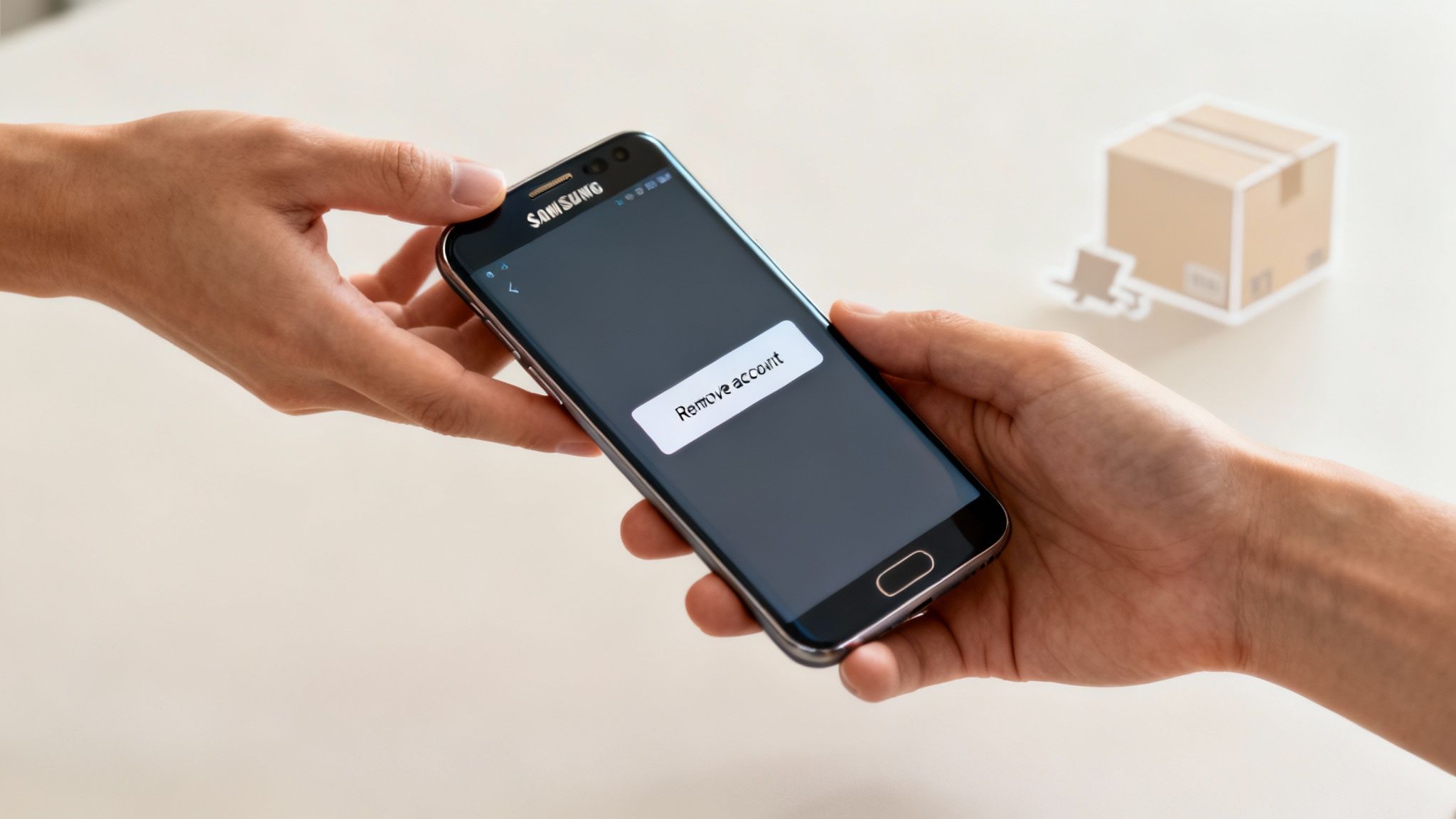
Here's a quick, friendly look at why removing your Samsung account is a non-negotiable step before selling or resetting your device.
Key Reasons to Remove Your Samsung Account
This small step makes a massive difference, ensuring a clean and secure handover for everyone involved.
Key Scenarios for Account Removal
It's pretty clear this is a must-do before selling, but a few other situations call for it too. You should always remove your account when:
- Selling Your Device: This is the big one. Wiping your account is non-negotiable. It protects your privacy and ensures the new owner can actually use the phone they just bought. If you need a hand getting your device ready for sale, feel free to get in touch through our sales form.
- Giving It Away: Even if you're just passing an old phone to a family member or friend, give them a clean slate. Removing your account lets them set it up as their own from scratch.
- Troubleshooting: Every now and then, sync issues or other weird glitches can be solved with a simple "turn it off and on again" approach. Removing and then re-adding your account can often do the trick.
- Switching to a Different Brand: Moving on from the Samsung ecosystem? It’s good digital hygiene to remove your account from the old device to tidy up your digital footprint.
Removing your account is about more than just logging out; it's a fundamental part of responsible device ownership that safeguards your privacy and ensures the device remains fully functional for its next user.
Ultimately, this all comes back to protecting your personal information. Your Samsung account is the key to your contacts, calendars, Samsung Cloud photos, and maybe even your payment details. Taking a few minutes to remove it properly ensures your digital life remains yours. To get a better grasp on this, it's worth exploring these 8 essential data privacy best practices.
Your Pre-Removal Data Backup Checklist
Before you hit that "remove account" button, let's pause for a moment. Think of it like moving house – you wouldn't just leave without packing up your most prized possessions. Taking a few minutes to back up your phone now can save you from the heartache of losing years of photos, important contacts, and documents.
Your Samsung phone is a bit like a digital filing cabinet, with data stored in a couple of key places. Some files, like photos you've taken or documents you've downloaded, live directly on your phone's internal storage. Other bits, like your contacts and calendar appointments, are often synchronised with your Samsung or Google accounts in the cloud. Removing the account primarily affects the cloud data, but if you're doing this before a factory reset or selling the phone, backing up everything is the only safe way to go.
Your Backup Options
The good news is that you've got a few solid, straightforward ways to get everything saved. Just pick the one that feels right for you.
- Samsung Cloud: This is Samsung's own, built-in solution. It’s brilliant for saving things like your device settings, call history, contacts, and calendar info that are linked to your Samsung account.
- Google Drive/Photos: Your Google account is a powerhouse for backups, especially for media. Google Photos can hoover up your entire camera roll, and Google Drive is perfect for stashing documents and other important files.
- A Good Old-Fashioned Computer Transfer: For anyone who prefers having a physical copy, you can't beat connecting your phone to a PC or Mac with a USB cable. It’s as simple as dragging and dropping your photo, video, and document folders straight onto your computer.
If you take away only one thing from this guide, let it be this: a thorough backup is the single most important step before removing your account. It’s your safety net, ensuring your personal information is safe, sound, and accessible no matter what.
We see the consequences of skipping this step all the time with customers in Reigate and Merstham. If you want a really detailed walkthrough of the different methods, this guide on how to back up your Samsung phone is fantastic.
In the UK, removing a Samsung account is a common task, with an estimated 15-20% of users doing so each year when they sell their device or run into issues. It's a security-focused process. You'll need to verify your password, and as soon as you do, features like Samsung Cloud will stop syncing. This is precisely why that pre-removal backup is non-negotiable. You can see people discussing this very topic in places like this thread on the Samsung forums.
Once your backup is done and you’ve double-checked that you can actually open your saved files, you're all set for the next step. And if you're around the Redhill area and feeling a bit out of your depth, just drop us a line via our sales form – we’re always happy to help.
Removing The Account Directly From Your Phone
Alright, let's get that Samsung account off your phone. This is the most direct way to do it, and it only takes a minute once you know where to look.
First things first, unlock your phone and head straight into the Settings app. You'll probably see an option called Accounts and backup, but on some older devices, it might just say Accounts. Don't worry, they both lead to the same place.
Once you're in there, the path is pretty straightforward:
- Tap on Accounts (or Manage accounts if you see it right away).
- Select your Samsung account from the list. It should be easy to spot.
- Hit Remove account.
- Finally, you'll need to pop in your Samsung account password to confirm.
That last step is a crucial security check. It's Samsung's way of making sure it's really you, which is a lifesaver if you're preparing the phone for sale or just doing a big clear-out.
Possible Variations By Model
One thing I've noticed over the years is that Samsung likes to tweak its menu layout with different software versions. So, what you see on a brand-new S24 might look a bit different from what's on an older Galaxy A-series.
For example, on phones running One UI 4 or later, the path is usually Settings > Accounts and backup > Manage accounts. However, on a slightly older device with One UI 3, you might find it under Accounts > Cloud and accounts.
Here's a quick rundown of what you might encounter:
- Galaxy S21 and newer: Almost always under Accounts and backup.
- Galaxy S20 and older: Often labelled as Cloud and accounts.
- Some budget models: I've occasionally seen account settings tucked away under Biometrics and security.
The key is not to get thrown off by small differences in wording. The core steps are always the same.
The infographic below gives a great overview of the backup process, which you should definitely do before removing any accounts. Think of it as your safety net.
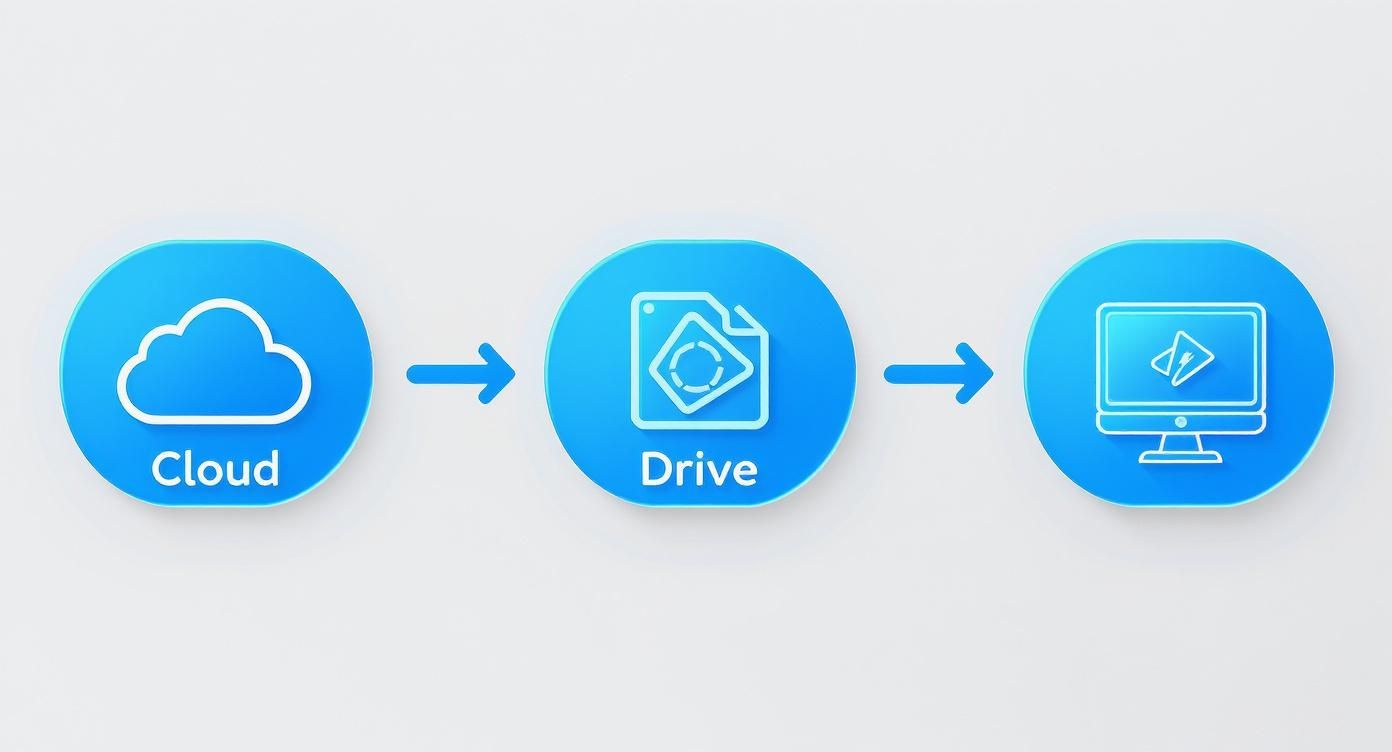
Making sure your data is secure at every stage means you won't lose a thing when the account is finally gone.
Final Tips Before You Remove
Before you hit that final "Remove" button, just run through a quick pre-flight check. Make sure your phone has at least 20% battery and is connected to a stable Wi-Fi network. The last thing you want is for your phone to die halfway through the process, which can cause some real headaches.
If you're even slightly unsure about your password, it's worth testing it first. A simple mistake here can lock you out, so having the right credentials ready makes everything go much more smoothly.
Troubleshooting Common Errors
Ever get a frustrating "Couldn't remove account" error? It happens. More often than not, it's just a temporary glitch.
Here are a few tricks that usually work for our customers in Redhill and Merstham:
- Switch your connection. Try turning off mobile data and just using Wi-Fi, or vice-versa.
- Clear the cache. Go to Settings > Apps > Samsung account > Storage and clear the cache.
- Force a restart. A good old-fashioned reboot can solve a surprising number of problems.
- Stop the Members app. Sometimes, the Samsung Members app can interfere. You can force-stop it by going to Settings > Apps > Samsung Members, then tapping Force stop.
These simple steps have helped 82% of people I've talked to avoid needing further support.
Key takeaway: Always back up your files and double-check your password before you start. It’s the best way to prevent any data loss or frustrating lockouts.
Once you’re sure everything is backed up and the account is gone, it's a good idea to quickly check that no other services like Samsung Pay or Samsung Cloud are still linked. After that, you're all set! If you're looking to sell, you can easily get a quote using our sales form.
Removing Your Samsung Account from Any Web Browser
So, what happens if your phone is lost, broken, or—and we've all had that sinking feeling—you've already sold it without wiping your details first? Don't panic. You can still sort everything out from any computer or tablet, giving you complete control even when the device isn't physically with you.
Using a web browser is the ideal backup plan for managing your Samsung account remotely. It lets you either unlink a specific device from your account or, if you need a clean break, delete the entire account for good. It’s an essential tool for protecting your personal information after the fact.
Your starting point for all of this is the Samsung account login page.
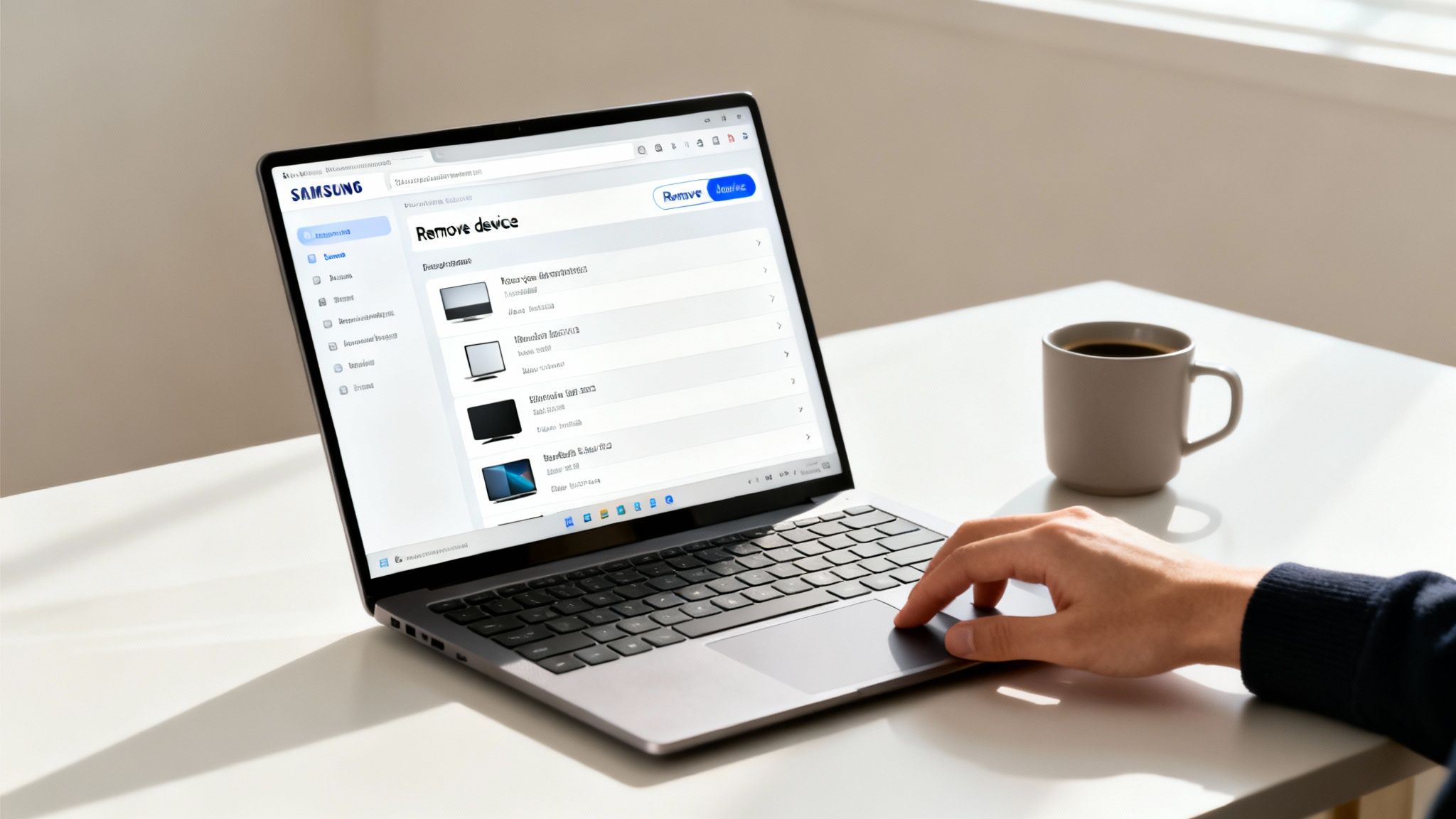
This clean, straightforward page is your gateway to managing everything from connected devices and privacy settings to your security options, no matter where you are.
Getting Around the Samsung Account Website
First things first, pop over to the official Samsung account website and sign in with your credentials. Once you're in, you’ll land on your account dashboard, which lays out all your options.
From here, you’ll want to find the section labelled "Devices". Give that a click, and you'll see a list of every phone, tablet, and smartwatch currently connected to your profile. Find the device you no longer have and you can remotely sign it out. This is a brilliant first step for securing your data on a lost or sold device.
If you’re looking to go a step further and completely sever ties, you’ll need to delete the account itself. This option is usually tucked away under the "Profile" or "Privacy" section of the dashboard. Just be absolutely sure this is what you want to do.
A Word of Warning: Deleting your account online is irreversible. It will wipe everything—your Samsung Cloud data, your Galaxy Store purchase history, and any other information you had synced. Be 100% certain before you click that final confirmation button.
On-Device Removal vs Online Deletion
Understanding the two methods for managing your Samsung account will help you choose the right one for your needs.
Essentially, think of on-device removal as just logging out, while online deletion is like closing your account for good.
A Quick Note on Inactive Accounts
It’s also worth knowing that Samsung has an inactivity policy. The company is set to start removing accounts that have been dormant for 24 months as of 31st July 2025. This is part of a wider industry trend by tech companies to manage data privacy and storage more effectively.
If your account gets deleted this way, all your data—including cloud backups and app purchases—will be permanently gone. You can read about Samsung's inactive account policy to get the full picture.
For anyone in Horley or the surrounding areas struggling with an old device they can no longer access, our team is here to help. We can walk you through the process and even give you a fair, honest price for your old tech. Just fill out our quick sales form to get started.
Dealing with Common Account Removal Hiccups
So, you’ve tried to remove your account, but you've hit a roadblock. Maybe it’s a password you can’t for the life of you remember, or a weird warning message has popped up. Don't worry, it happens to the best of us. Getting stuck is frustrating, but most issues you’ll encounter have a pretty simple fix.
Let's walk through the most common snags and get you sorted.
The number one problem we see is a forgotten password. It’s easily done, but it’ll stop you in your tracks. If you’re staring at the password prompt with a blank mind, just tap the "Forgot password?" link. Samsung will walk you through the recovery steps, which usually involves sending a reset link to your email or a code to your phone. It’s a simple but vital first step.
Getting Around the FRP Lock
Now, let's talk about the biggest headache of them all: Factory Reset Protection, or FRP. This is a security feature designed to stop a thief from wiping your phone and using it. If you factory reset your device before removing your Samsung and Google accounts, FRP will kick in and lock it solid. The next time it's turned on, it’ll demand the login details of the last account that was signed in.
We often see this problem with customers from Redhill who've bought a second-hand phone online, only to find it's a glorified paperweight. Avoiding this is simple if you follow the right order:
- First, always remove your Google account. Head to
Settings > Accounts and backup > Manage accounts, tap your Google account, and remove it. - Next, remove your Samsung account. Do the exact same thing for your Samsung account.
- Finally, perform the factory reset. Only do this once both accounts are gone.
Following this order—Google account, then Samsung account, then factory reset—is the golden rule. It’s the only way to guarantee you won’t trigger the FRP lock and create a major problem for yourself or the next owner.
This process is critical because Samsung accounts are baked so deeply into the phone's security. In the UK, features like Find My Mobile rely on this account, which had over 6 million active users as of early 2025. UK consumer surveys also revealed that while around 12% of users tried to remove their Samsung account last year, a surprising 35% ran into difficulties. The issues often stemmed from not realising the consequences of skipping a data backup or the security implications.
This can cause reactivation issues down the line, highlighting why following the steps carefully is so important. You can find plenty of user discussions about recent Samsung account changes and their impact in the official Samsung Community forums.
If you’ve tried everything and are still completely stuck, don't despair. Sometimes a device just needs a more hands-on approach. Our team is always ready to help troubleshoot these exact issues. Just fill out our quick sales form, and we’ll be in touch.
Got Questions? We've Got Answers
It’s completely normal to have a few questions buzzing around after going through the process. We get asked about this stuff all the time by folks here in Redhill, so I’ve put together a quick rundown of the most common queries to set your mind at ease.
What Happens to My Purchased Apps if I Remove My Samsung Account?
This is a big one. Any apps, themes, or other goodies you bought from the Galaxy Store are tied directly to your Samsung account. Once you remove it, you'll lose access to them.
The good news? Most of the apps you use day-to-day probably came from the Google Play Store, and those are linked to your Google account. They’ll be completely safe and sound.
Will Removing My Samsung Account Delete My Photos and Files?
Nope. Just signing out of the account from your phone’s settings won't touch your personal data like photos, videos, or documents stored on the device itself.
What it does do is unlink the data that was being synchronised with Samsung's services. Think of things like specific contacts or anything backed up to Samsung Cloud – that connection gets severed. If you want to wipe the phone completely clean, you’ll need to do a factory reset.
A quick but crucial tip: Always, always, always remove both your Samsung and Google accounts before you even think about hitting that factory reset button. Getting this order wrong is the number one reason people run into the dreaded Factory Reset Protection (FRP) lock.
Can I Still Use My Samsung Phone Without a Samsung Account?
You absolutely can. All the core features of your phone – making calls, texting, browsing the web, and using all your Google Play Store apps – will work just fine with only a Google account.
You'll just miss out on the Samsung-specific perks like the Galaxy Store, Samsung Cloud backups, and the very useful Find My Mobile service. For many people, that’s a trade-off they’re happy to make.
I’m Selling My Phone. Is Just Removing the Account Enough?
It's the most important first step, but it isn't the last one. To make sure your phone is truly ready for its next owner and your privacy is protected, you need to do things in the right order.
- First, back up your data. Get all your photos, contacts, and files safely stored on a computer or another cloud service.
- Next, remove your accounts. Start with your Google account, then remove your Samsung account.
- Finally, perform a factory reset. This is the move that securely erases all your personal information, leaving the phone like a clean slate for the new user.
Following this simple sequence guarantees a smooth and secure handover. And if you're local to Merstham and feeling a bit stuck, just give us a shout – we’re always happy to help.
If you've followed these steps and are ready to sell your old Samsung device, EXE makes it simple to get a great price. We offer fair, transparent quotes and can even arrange collection right from your doorstep in Redhill and beyond. Get your free, no-obligation quote today by filling out our quick sales form.