


Hold on a second. Before you jump straight to removing your Google account from a device, there are a few things you absolutely must do first. Think of this as your pre-flight checklist—a few quick steps to make sure you don't lose precious photos, lock yourself out of other apps, or cause a massive headache for yourself (or the next owner) down the line.
Your Pre-Removal Safety Checklist
When you're getting a phone or laptop ready to sell, especially to specialists like us here at EXE in Redhill, doing the prep work correctly is half the battle. It's not just about tapping 'remove account'; it’s about making a clean break and ensuring your digital life stays private.
This little bit of housekeeping ensures your personal information remains yours and makes the device completely ready for its new home. For anyone in the surrounding areas like Merstham or Horley looking to sell their tech, these steps will make the entire handover process smooth and secure.
Backup Your Memories with Google Takeout
First things first, let's get all your important stuff saved. Your Google account is probably a treasure trove of memories and information—years of photos, crucial emails, contacts, and documents. Losing all that is simply not an option.
This is where Google Takeout comes in. It’s a brilliant, straightforward tool that lets you download a complete archive of your data from every Google service you use. You can pick and choose what you want to keep, whether it’s your entire Google Photos library or just your contacts, and download it all in one neat package. It's like carefully packing up your house before you move out.
Check Which Apps Use Your Google Login
So many of us use that handy "Sign in with Google" button for other apps and websites, from streaming services to online shops. It's convenient, but it means you need to check which services are linked to your account before you get rid of it.
Just pop into your Google Account's security settings, and you'll find a list of all the third-party apps with access. You’ll need to go through them and switch your login method—usually to a standard email and password combination. If you skip this, you could find yourself permanently locked out of those accounts. Thinking about privacy by default principles here is a smart move; it reinforces why it's so important to control where and how your data is used.
This visual guide neatly sums up the essential steps to take before removing your account.
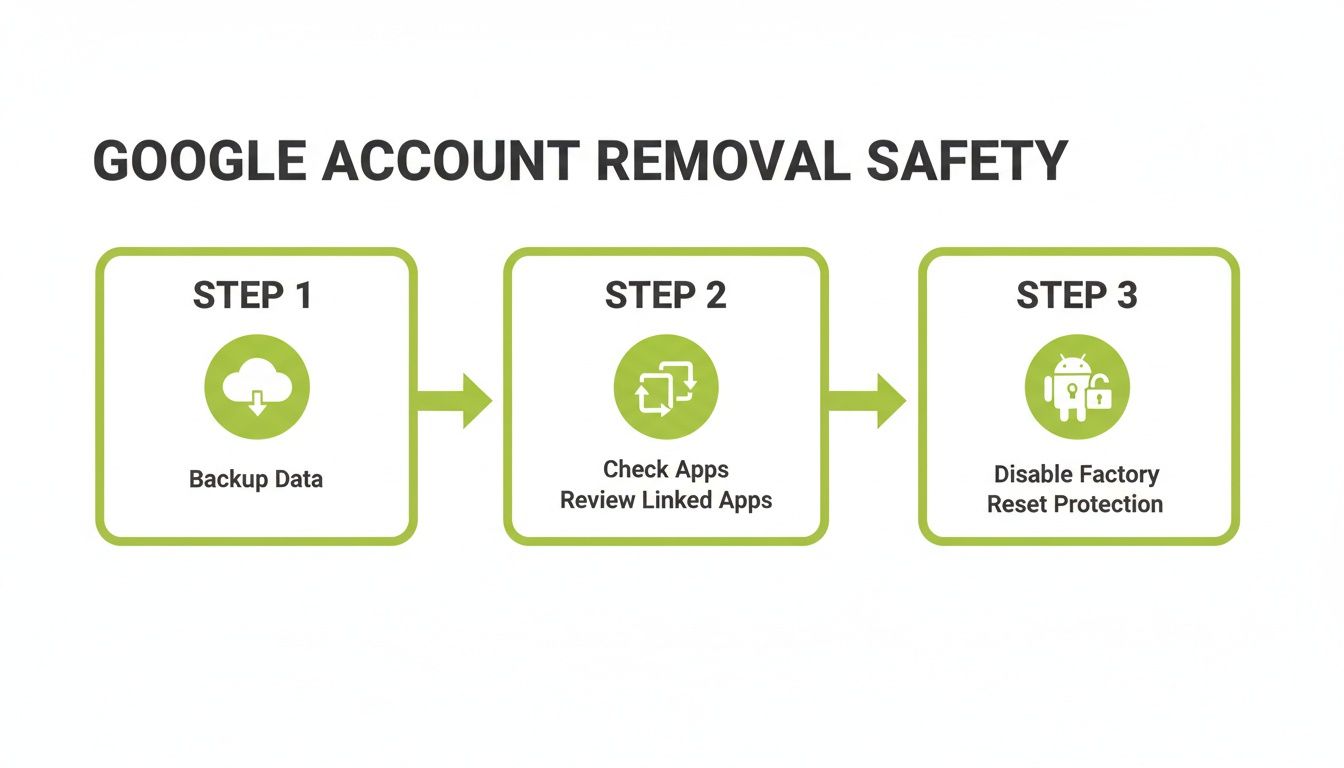
As you can see, a methodical approach—backing up, reviewing apps, and dealing with security settings—is the secret to a stress-free handover.
The Most Overlooked Step: Disable Factory Reset Protection
Now for a crucial tip that so many Android users miss: you must disable Factory Reset Protection (FRP) before selling your device. We can't stress this enough.
FRP is a security feature designed to stop thieves from using your phone if it's stolen. It links the device directly to your Google account. If FRP is still active, a factory reset will trigger a lock, demanding your old Google login details to set the phone up again. For the next owner, this basically turns the device into a paperweight.
Disabling it is incredibly simple. All you have to do is remove your Google account from the phone's settings before you perform the factory reset. That's it. This one small action makes the device fully usable for its new owner and allows specialists like us to process it without any hitches. A little prep goes a long way.
Removing a Google Account from Your Android Phone
Alright, now that you’ve done the crucial prep work, it’s time for the main event: safely signing out of your Google account on your Android phone. This is the final gate you need to pass through to get your device ready for its next life, whether you're selling it or just passing it on to a friend. For our customers coming from Redhill, Merstham, and the surrounding Surrey towns, getting this part right makes the process at EXE super smooth.
Let's clear up a common misunderstanding first. When you remove a Google account from your phone, you are not deleting the account itself. Your emails, photos, contacts, and everything else stored in the cloud are completely safe. All you're doing is severing the link between that specific device and your account. This erases local data and, most importantly, switches off the Factory Reset Protection we mentioned earlier.
We like to think of it like checking out of a hotel. You're simply removing your stuff from that one room; your actual home (your Google account) remains untouched. That's exactly the goal here.
Finding the Account Settings Menu
The precise steps can look a little different depending on who made your phone—a Samsung Galaxy's menu won't be identical to a Google Pixel's, for example. But don't worry, the general idea is always the same.
You’ll always start in your phone’s Settings app. From there, your mission is to find where all your accounts are managed. Thankfully, it’s usually labelled something obvious.
Here are the most common paths you'll take:
- Google Pixel or Stock Android: Head to
Settings>Passwords & accounts. Your Google account will be listed right there. - Samsung Devices: Go to
Settings>Accounts and backup>Manage accounts. Samsung tucks all your synced accounts away in this spot. - Other Android Phones: Keep an eye out for menu options like
Accounts,Users & accounts, orCloud and accounts.
Once you find the list, just tap on the Google account you want to unlink. That will take you to a screen with sync details and the button we’re looking for.
Key Takeaway: Your goal is to navigate to the
Accountssection withinSettings. The name might vary slightly, but you're looking for the menu that shows all the accounts connected to your device, like Google, WhatsApp, or Outlook.
The Final Step: Removing the Account
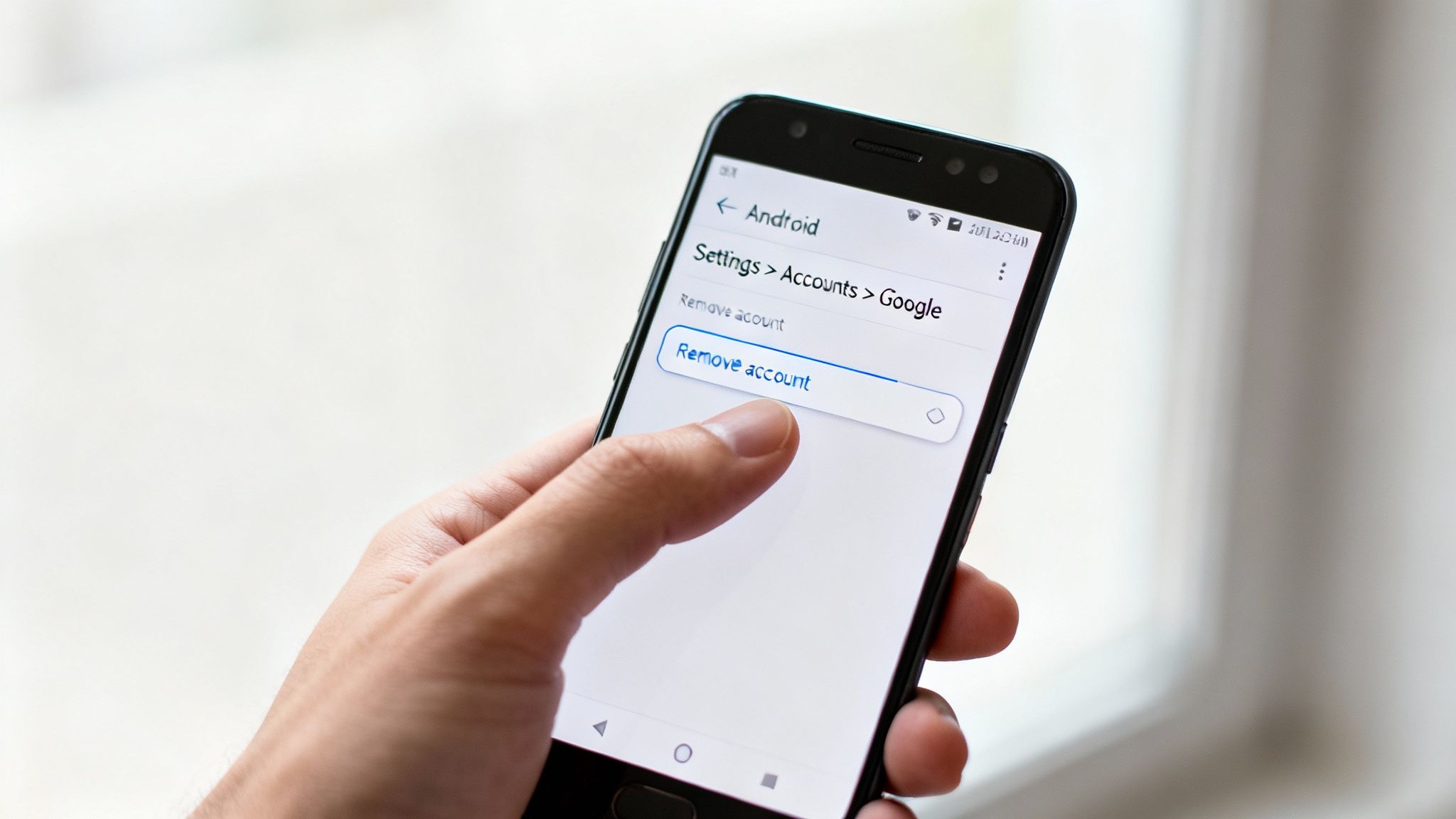
After selecting your Google account, you’ll see an option clearly marked "Remove account". When you tap it, a final confirmation box will pop up. It’ll warn you that this action will delete related messages, contacts, and other data from the phone. This is exactly what we want.
Go ahead and confirm. You might be prompted to enter your phone’s PIN, pattern, or fingerprint as a final security check—this just stops someone else from doing it without your permission. Once you've verified it's you, the account will be gone from the device in moments.
And you're done! You've successfully unlinked your Google account, and the phone is now ready for a full factory reset without any security locks tripping up the next owner. For anyone planning to drop by our shop in Redhill, completing this step means your device is ready for an instant quote and payment. Curious what your tech is worth? Fill out our quick sales form to find out now.
Signing Out of Your Google Account Everywhere Else
Your phone is usually ground zero for your Google account, but let's be honest—it’s probably logged in on half a dozen other devices too. Think about that old tablet in a drawer, your work laptop, or even the Gmail app on your partner's iPhone. Tying up these loose ends is essential before you sell anything.
For our customers here in Redhill and the surrounding areas like Merstham, making sure every device is clear is a huge help. It means we can process your sale quickly and get you paid without any security hiccups.
Removing Your Account from an iPhone or iPad
If you're an iPhone or iPad user, you almost certainly have the Gmail app. The good news is that kicking your Google account off it is dead simple. Remember, this just removes the account from the app on that device; your Google account itself is perfectly safe.
Just open the Gmail app and tap your profile picture in the top-right corner. A menu will pop up showing all your connected accounts. Tap on "Manage accounts on this device". You’ll then see a list of your accounts—find the one you want to remove and hit the "Remove from this device" option. One quick confirmation and you're done.
It's a local action, but it's a non-negotiable step for securing your data before you trade in an Apple device.
Properly Signing Out of a Chromebook
Chromebooks live and breathe through your Google account, which makes them brilliant to use but also means you have to sign out properly before passing one on. The definitive way to do this is with a "Powerwash"—Google's term for a full factory reset.
A Powerwash nukes everything on the Chromebook’s hard drive: user accounts, files, apps, and settings. It brings the device back to the pristine state it was in when you first opened the box, making it perfectly safe for the next owner.
Here’s how to do it:
- First, make sure you’re signed out of your Chromebook.
- From the sign-in screen, press and hold Ctrl + Alt + Shift + R.
- A little box will pop up. Choose "Restart".
- When it reboots, another box will appear. Select "Powerwash" and then "Continue".
The whole thing takes just a couple of minutes. Once it’s finished, your account and all its data have been permanently wiped from that machine.
The Ultimate Safety Net: Remotely Logging Out
But what if you’ve already sold a device, or you have a nagging feeling you’re still logged into a PC at an old job? Don't panic. Google has a fantastic security feature that lets you remotely sign out of any device, from anywhere. It’s an absolute lifesaver.
Go to your main Google Account settings page—just type myaccount.google.com into your browser. Click on the "Security" tab in the left-hand menu. Scroll down a bit until you see a panel called "Your devices" and click on "Manage all devices".
This page gives you a complete list of every single device—phones, laptops, smart TVs, you name it—where your account is or has recently been active. You can even see its last known location and activity time.
Take a moment to go through this list carefully. If you spot a device you no longer own or don't recognise, click on it and select "Sign out". Google will immediately boot your account off that device, securing it instantly.
This remote sign-out is a brilliant security check to perform every so often. It’s also a good opportunity to think about all the services connected to your account. If you’re curious about how they stack up, you can compare Google Assistant to other voice assistants to see how their privacy and features differ.
To give you a clearer picture, here’s a quick breakdown of how these removal methods compare.
Account Removal Methods Across Different Devices
By getting comfortable with these different methods, you can be confident that your account is secure no matter where you’ve used it. If you've ticked all these boxes and are ready to sell your old tech, you’re in a great position. Why not get a fast, no-obligation quote from us today by visiting our online sales form?
Should You Remove or Permanently Delete Your Account?
When you're getting a device ready to sell, the words "remove" and "delete" get used interchangeably, but they mean completely different things. Honestly, getting this wrong can cause a world of pain, from losing precious memories to locking a phone you’re trying to sell.
It's a critical distinction, so let's clear it up once and for all.
Think of it like this: removing your Google account from a phone is like checking out of a hotel room. You’re simply taking your belongings and your name off the door, leaving it fresh for the next person. The hotel itself—your Google account—is still there, and you can check into a new room (your next phone) anytime you like.
On the other hand, deleting your account is like demolishing the entire hotel. Everything inside—all the records, photos, emails, and memories—is gone. Forever. It’s an extreme step, and it’s almost always irreversible.
When You Should Just Remove Your Account
For 99% of people, especially if you're selling your old tech to us here at EXE, simply removing the account from the device is exactly what you need to do. It’s the correct and safe action when you're just switching gadgets.
Here are the everyday situations where removing is the right choice:
- Selling Your Phone or Laptop: This is the big one. You have to unlink your personal data from that bit of hardware before it goes to a new owner. This is precisely what we ask from our customers in Redhill, Merstham, and across the UK.
- Giving a Device to a Family Member: Even if it’s staying in the house, you’ll want to sign out so they can set it up as their own.
- Using a Public or Shared Computer: Always, always remove your account from a library or hotel computer when you’re done. It's just good digital hygiene.
Removing the account protects your privacy on that specific device, but your digital life—your Gmail, Google Photos, and Drive files—remains perfectly safe and ready for you on your other devices.
When Deleting Your Account Might Be an Option
So, when would you ever take the drastic step of permanent deletion? This is a much rarer scenario and one you need to approach with serious caution. Deleting your entire Google account means you will permanently lose access to everything connected to it.
That means losing:
- All emails and attachments in your Gmail.
- Every single photo and video stored in Google Photos.
- All documents, spreadsheets, and files in Google Drive.
- Your YouTube subscriptions and any content you’ve uploaded.
- Any apps, films, or books bought through Google Play.
- The ability to use "Sign in with Google" on countless other websites.
Warning: Account deletion is final. Google offers a very brief grace period, but after that, your data cannot be recovered. Ever.
You’d only ever consider this if you were planning to completely walk away from Google's services forever and had already backed up every last thing you wanted to keep. It is absolutely not a necessary step for selling a device.
Privacy Concerns Are on the Rise
It's clear that people are becoming far more aware of their digital footprint. In fact, in the UK, searches for 'how to delete Google history' have surged by 47% in the past year alone. This shows a real and growing public concern over digital privacy, likely spurred on by stricter GDPR rules and people wanting more control before selling old devices.
You can read more about these Google usage trends and statistics to see just how much user behaviour is changing.
For most of us, simply removing your account from old devices and keeping an eye on your privacy settings is more than enough. If you’re ready to sell your tech and have followed these steps, we can help turn it into cash. Get a fast, no-obligation quote by completing our simple online sales form.
Turning Your Old Tech into Cash with EXE
So, you’ve done all the important prep work. Your photos are backed up, and your Google account is safely disconnected from your old device. What’s next? This is the part where that gadget gathering dust in a drawer gets a new lease on life—and puts some extra cash in your bank account.
At EXE, we’ve built our whole business around turning your old devices into money, both quickly and securely. When you sell to us, whether you pop into our Redhill shop or you're coming from nearby towns like Merstham, removing your Google account isn't just a friendly suggestion; it's the essential first step. It’s the best way to guarantee your privacy is locked down, allowing us to get the device ready for its next owner without any security headaches.
We Take Your Data Security Seriously
In a world where data privacy is a bigger deal than ever, we don’t mess about. Every single device that comes through our doors—from a phone with a cracked screen to a high-end gaming laptop—goes through a rigorous, GDPR-compliant data wiping process. We use industry-leading software to permanently erase every last bit of data, making it completely unrecoverable.
This secure process is all about giving you total peace of mind, knowing your personal information is gone for good. It’s a core part of our promise to our customers across Surrey and beyond. With over a decade of experience and hundreds of 5-star Google reviews, you can trust us to handle both your tech and your data with the care they deserve.
It's clear that people are paying more attention to how their info is handled. The British government, for example, has submitted thousands of content removal requests to Google since 2020, often citing privacy and security. This just highlights why being proactive and removing your Google account before selling a device is so crucial for UK users. You can read more about these UK content removal requests on Advanced Television.
A Simple, Rewarding Way to Sell
We think selling your old tech should be easy and worthwhile. We've spent years refining our service to cut out the usual hassle and get you paid as fast as possible. You won't find any complicated jargon or long waits here—just a clear, simple path from your old device to instant cash.
Everything we do is designed for your convenience:
- Get a Free Online Quote: Find out what your device is worth in just a few minutes.
- Convenient Collection: We can arrange home or office collection for local customers.
- Instant Bank Transfers: As soon as we’ve checked your device, the money is on its way to you.
Our Promise: We are committed to offering a fast, fair, and secure way to monetise your tech. We handle the technical side of data wiping so you can focus on getting paid.
Why Your Pre-Sale Prep Is So Important
Taking a few minutes to follow the steps and properly remove your Google account before you sell to us makes a massive difference. It means our technicians can get straight to work with our secure data-wiping procedure and functional tests. When a device arrives still locked to an account, it unfortunately causes delays and can sometimes even prevent us from completing the sale.
By signing out properly, you help us keep things running smoothly for everyone. It’s the final, crucial step in protecting your own privacy and getting the device ready for its next chapter.
Ready to see what that old phone or laptop is worth? It’s completely free to find out, and there’s no obligation. Just fill out our quick online sales form to get an instant quote. We look forward to helping you turn your unwanted tech into cash.
Got Questions? We've Got Answers
Even with the best instructions, it's completely normal to have a few more questions rattling around. Here in our Redhill shop, we get asked about these things all the time, so we’ve put together some quick and clear answers to the most common queries we hear.
Hopefully, this clears up any final bits of confusion and helps you get your device ready for its next owner, whether you’re selling it to us or just passing it on.
What Happens to My Data if I Just Remove the Account from a Device?
This is a brilliant question and a really important one. When you simply remove a Google account from your phone or tablet, you're only affecting the data on that specific device. That’s it. Your actual Google account—and everything you've saved in the cloud—is completely safe and untouched.
Think of it like this: all your emails, photos, contacts, and documents are stored safely in Google’s data centres. Removing the account from your old phone just erases the local copies and logs you out. You can then sign into a new device and find everything exactly as you left it.
This is precisely what you want to do before selling a device. It protects your privacy on that piece of hardware without putting your entire digital life at risk.
What Should I Do if I’ve Forgotten My Password?
Forgetting a password happens to the best of us, but don't panic—it’s not a disaster. If you can’t remember the password to remove the account from your Android device, you’ll need to recover it first. You simply can’t sign out without it.
Your best bet is to grab another device, like your laptop or a different phone, and head over to Google's account recovery page.
Google will ask you a few security questions to prove you are who you say you are. This might involve things like:
- Confirming a phone number or recovery email address they have on file.
- Answering a security question you set up ages ago.
- Verifying your identity via another trusted device you're already logged into.
Once you’ve successfully proven it’s you, Google will let you set a new password. You can then jump back to the device you’re preparing for sale, use this new password, and remove the account properly.
Top Tip: It's always a good idea to set up recovery options before you actually need them. Having a recovery email and phone number linked to your account makes this whole process so much smoother.
Is a Factory Reset Enough to Remove My Google Account?
This is a very common and potentially costly mistake. On modern Android phones, a factory reset alone is not enough to remove your Google account if Factory Reset Protection (FRP) is active. In fact, performing a factory reset without removing the account first is exactly what causes the device to become locked.
FRP is a security feature designed to stop thieves from wiping a stolen phone and using it. If it’s on, the device will demand the login details for the last known Google account after being reset. For the next owner, including specialists like us at EXE, this makes the phone completely unusable.
There's only one correct way to prepare an Android device for a new home. It has to be done in this order:
- First, dive into your settings and remove your Google account.
- Then, and only then, perform the factory reset.
Following this sequence ensures FRP is deactivated, leaving the device totally clean and ready for its new owner. For our customers coming from Merstham and other local towns, getting this right makes the selling process incredibly quick and easy.
We hope this FAQ has answered all your questions! If you've followed these steps and your device is good to go, the final step is turning it into cash. At EXE, we make the process simple, secure, and rewarding.
Ready to find out what your old tech is worth? Get your free, no-obligation quote by visiting our online sales form now.