


Hold on! Before you jump straight to the reset button, there are a few things you absolutely must do first. Think of this as your pre-flight check – a quick but essential routine to make sure you don't accidentally delete your treasured photos or leave personal data behind for the next owner.
Your Pre-Reset Checklist for a Flawless iPhone Wipe
A factory reset is the nuclear option. It gives your iPhone a completely fresh start by erasing all your information and returning it to its out-of-the-box settings. This is perfect if you're fixing a stubborn software bug, getting ready for a new upgrade, or preparing to sell your old phone to us here at EXE in Redhill.
But skipping the prep work can cause major headaches, from losing years of memories forever to leaving your private accounts wide open. Let's make sure that doesn't happen.

Why Backing Up Is a Must
Just picture it: every photo, text message, and contact, gone in a flash. That's what happens when you reset without a backup. Your iPhone is a time capsule of your life, so making a copy of everything is by far the most important first step.
You've got two simple ways to do this:
- iCloud Backup: This is the set-it-and-forget-it option. Just make sure you're on Wi-Fi, then head to Settings > [Your Name] > iCloud > iCloud Backup, and hit Back Up Now. Everything gets saved securely to your Apple account, ready to be beamed down to a new iPhone.
- Computer Backup: If you're a bit old-school and like having a local copy, plug your iPhone into your computer. On a Mac, you'll use Finder; on a PC, you'll need iTunes. Just select your iPhone and click Back Up Now. This saves a complete backup right onto your computer’s hard drive.
Secure Your Apple ID and Find My
Once your data is safely backed up, it's time to sever ties between the phone and your personal accounts. This is non-negotiable if you're selling it – in fact, it’s one of the first things we check for on every device that comes through our doors, whether it's from nearby Merstham or further afield.
First, sign out of your Apple ID. Go to Settings, tap your name right at the top, and scroll all the way down to Sign Out. You'll need to enter your password, which also turns off Find My, Apple’s brilliant anti-theft feature. Disabling this officially releases the iPhone from your account so a new person can set it up as their own.
A critical step in your pre-reset checklist is ensuring the security of your personal data before it's wiped from the device. Exploring secure data storage solutions can also help safeguard your information long-term.
Here in the UK, the whole reset process is quick, usually taking just 5 to 10 minutes. It’s good to know that around 65% of UK iPhone users already make a habit of backing up their data first – a smart move.
Once you’ve ticked off these steps, you’re all set to reset your phone with total peace of mind. And if you are selling it, you can get a quick quote by filling out our simple sales form.
The Easiest Way: Resetting Your iPhone Directly from Its Settings
Honestly, for most people, the quickest and simplest way to factory reset your iPhone is right from the device itself. This is the method we always recommend first, as long as your phone is working properly and you remember your passcode.
It’s the perfect approach if you're getting the phone ready to sell, trade-in, or just want that fresh-out-of-the-box feeling again. Whether you’re sorting it out at home in Redhill or on your lunch break in Merstham, this is your go-to option. Apple designed it to be foolproof, so you don’t need a computer or any fancy technical know-how.
Finding the Erase Option
First things first, you'll need to dive into your iPhone's settings. It's a pretty straightforward path, and you'll be there in under a minute.
- Pop open the Settings app (the grey cog icon).
- Scroll down a bit and tap on General.
- Head right to the bottom and select Transfer or Reset iPhone.
This screen is your command centre for wiping the device. You'll see a couple of choices, but for a true factory reset, the one you need is unmissable.
Erasing All Content and Settings
Look for the option that says Erase All Content and Settings. That’s the big one. Tapping it will kick off the final steps.
Your iPhone will ask for your passcode to prove it's you. Then, it will ask for your Apple ID password. This isn't just an extra hoop to jump through—it's a critical security step. Entering your password officially turns off Find My and removes the Activation Lock, properly disconnecting the phone from your account. This is absolutely essential if you plan on selling it.
A factory reset is a true digital deep clean. When you hit 'Erase All Content and Settings,' you’re not just deleting files. You're telling the iPhone to destroy the encryption keys that protect your data, which basically shreds everything digitally.
Once you confirm, the process begins. Your photos, contacts, apps, messages—everything gets securely wiped. After a few minutes, the iPhone will restart and greet you with the classic multi-language "Hello" screen, just like it did the day you first unboxed it.
The phone is now a completely clean slate, ready for its next owner or for you to restore from a backup. If you are selling it, getting this part right makes the whole process smoother and faster. To see what your newly reset device could be worth, you can get a quick, no-obligation quote by filling out our easy sales form.
Using a Computer for a Deeper iPhone Reset
Sometimes, the simplest way just isn't on the table. If your iPhone has decided to stop responding, is stuck staring at the Apple logo, or you’ve completely forgotten your passcode, then resetting it from the Settings menu is a no-go. This is exactly when your computer steps in to save the day, giving you a much more powerful way to perform a deep factory reset.
It might sound a bit technical, but trust us, it’s a lifesaver for stubborn software glitches. Whether you're in Redhill, Merstham, or anywhere else, this method works wonders when the on-device reset fails. It essentially forces your iPhone back to a clean slate.
Not sure which path to take? This little flowchart should clear things up and help you decide whether a simple settings reset is enough or if it's time to bring in the computer.
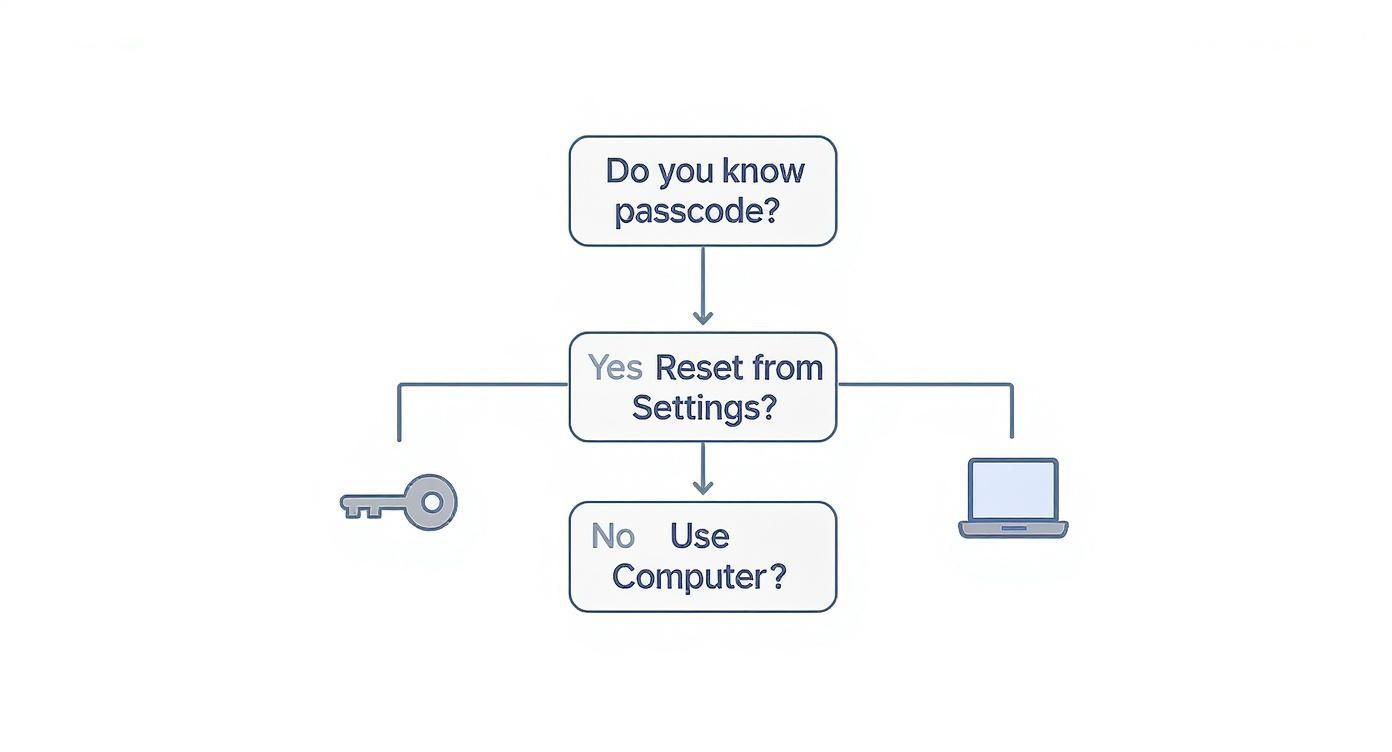
The bottom line is pretty clear: if you’re locked out or your phone is frozen, the computer method is your ticket in.
Finder for Modern Macs and iTunes for PCs
The tool for the job depends on what computer you’re using. If you've got a newer Mac running macOS Catalina or anything later, you'll be using Finder. For anyone on an older Mac or a Windows PC, the classic iTunes application is what you'll need.
First up, connect your iPhone to your computer using a USB cable. Once it's plugged in, your device should pop up in the Finder sidebar or inside iTunes. From there, you’ll see an option to Restore iPhone – that’s just Apple’s lingo for a factory reset. Clicking this will download the very latest version of iOS and install it, wiping everything clean in the process.
What if the Computer Can't See My iPhone?
So, what happens if your iPhone is so stuck that your computer doesn't even recognise it? This is where Recovery Mode comes in. It's a special troubleshooting state that forces the iPhone to communicate with Finder or iTunes, letting you restore it no matter how unresponsive it seems.
Getting into Recovery Mode requires a specific button combination, and it’s different depending on which iPhone you have:
- iPhone 8 or later: Quickly press and let go of the Volume Up button, then do the same for the Volume Down button. Finally, press and hold the Side button until you see the recovery mode screen appear.
- iPhone 7 series: Just press and hold the Side and Volume Down buttons at the same time until the recovery mode screen shows up.
- iPhone 6s or earlier: Press and hold both the Home and the Top (or Side) buttons together until the recovery mode screen pops up.
Using a computer to restore an iPhone isn't just a last resort; it's the go-to solution for Apple technicians. It’s a powerful fix for a whole host of common issues that can block a standard on-device reset.
You’d be surprised how often this is needed. Apple’s own UK support data shows that around 12% of service calls are linked to reset issues like a forgotten passcode. In these cases, restoring the device in Recovery Mode is the standard procedure, and it usually takes about 15 to 30 minutes to complete. If you're curious to see it in action, you can explore detailed insights on iPhone recovery methods for a visual guide.
Once the restore is finished, your iPhone will be completely wiped and ready for its next chapter. And if that next chapter involves selling it, you can get a fast and fair quote by filling out our simple sales form.
How to Remotely Wipe Your iPhone with iCloud
That horrible, sinking feeling when you realise your iPhone is gone is something else. You've patted down every pocket, checked the car, and retraced your steps, but it’s nowhere to be found. Whether you left it on the train back to Redhill or it’s been stolen, your mind probably jumps straight to all the personal data on it.
The good news? You don’t actually need the phone in your hand to secure your information.
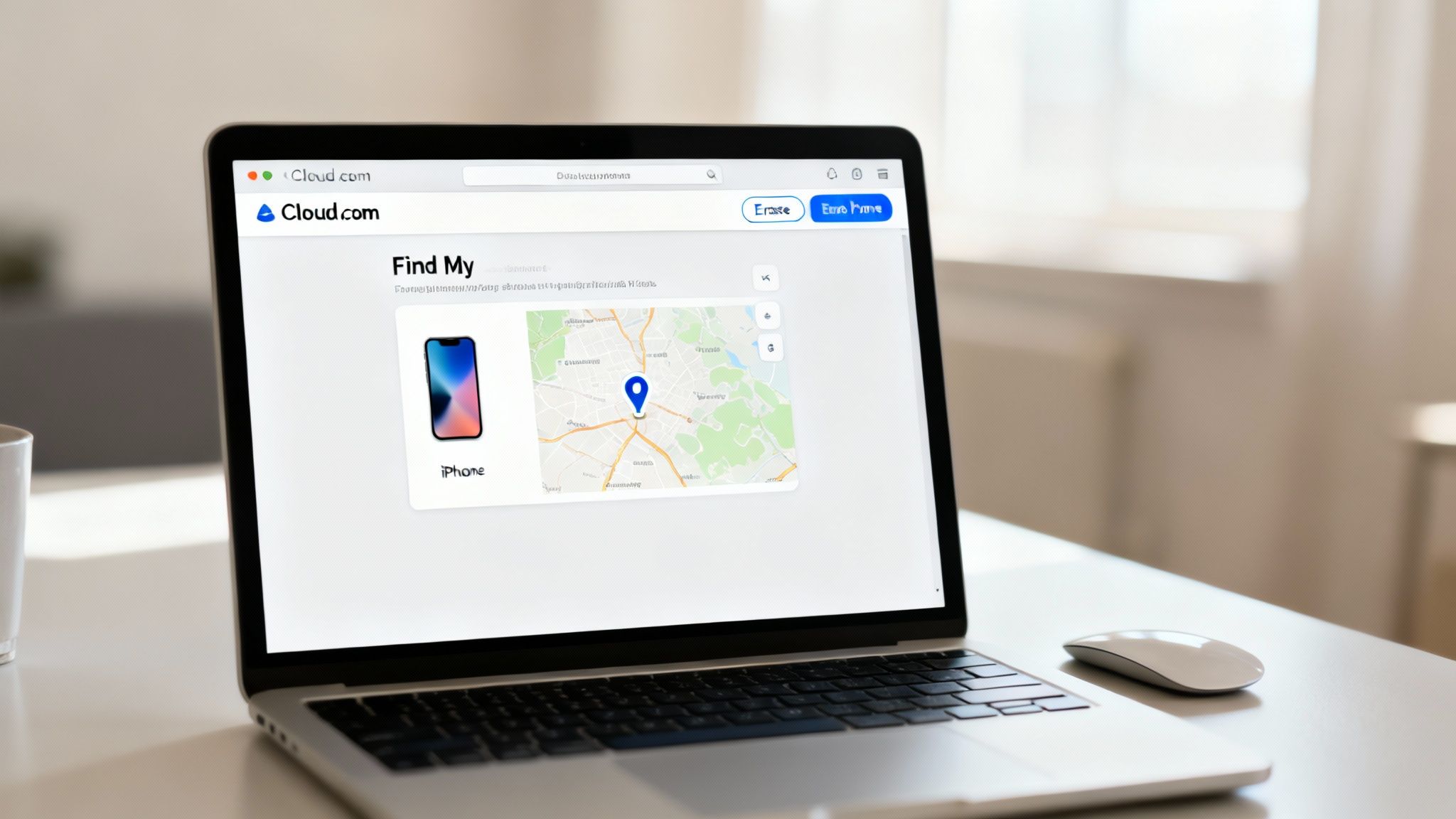
As long as you had Find My switched on before it went missing, you have a digital lifeline. This brilliant feature lets you trigger a full factory reset from anywhere in the world, using just a web browser.
Using Find My to Erase Your Device
First, get yourself to a computer or another smartphone and head over to iCloud.com. Sign in with your Apple ID and password. Once you're in, find and click on the Find My icon.
You'll see a map showing the last known location of your Apple devices. From here, it's pretty straightforward:
- At the top of the screen, click on "All Devices" to get a dropdown list of everything linked to your account.
- Pick the missing iPhone from that list. A small control panel will pop up.
- Select the "Erase iPhone" option. Apple will double-check you’re sure about this – once it’s done, there’s no going back.
As soon as you confirm, a command is sent out. The very next time your iPhone connects to the internet, whether it's through Wi-Fi or mobile data, it will kick off the reset process and wipe itself clean.
The Power of Activation Lock
Here’s the clever bit. Wiping the phone is one thing, but what really makes this a game-changer is Activation Lock.
Even after you’ve remotely erased all your data, the iPhone is still completely tied to your Apple ID. Without your password, nobody else can set it up or use it. It effectively turns the phone into a useless brick for any would-be thief, which is a massive deterrent.
A remote wipe through iCloud is your best line of defence when your device is lost or stolen. It not only erases your personal data but also ensures the phone remains a useless brick to a thief thanks to Activation Lock.
It provides genuine peace of mind. Losing a phone is a massive pain, but knowing you can protect your digital life from afar is a huge relief. If it looks like your phone is gone for good and you're thinking about a replacement, we're here to help. Just fill out our simple sales form to see what we can offer you.
So, What Happens Next?
So, you've done it! Your iPhone is now a clean slate, with all your personal data completely wiped. The big question is, what happens now? If you’re thinking about selling it, you’ve put yourself in the best possible position to get a great price.
We're here to make turning that old phone into cash as easy as possible.
Every day, we have people from all over the local area, from Merstham to Reigate, pop into our Redhill shop with their old devices. When a phone has been prepared correctly, just like you've done, the entire process becomes so much simpler for everyone involved.
Honestly, a properly reset phone is the key to getting you paid without any fuss.
What Our Technicians Look For
When you hand over your phone, our technicians run through a very specific checklist. Don't worry, this isn't about nitpicking every tiny scuff or scratch. It’s all about making sure the phone is genuinely ready for a new home and, most importantly, that your personal data is well and truly gone.
Here’s a little peek behind the curtain at what we check:
- Activation Lock: First things first, we confirm 'Find My' is off and the device is completely untethered from any iCloud or Apple ID accounts. A phone that isn't locked is a phone we can sell.
- Full Functionality Test: We then give it a thorough once-over, testing the screen's responsiveness, all the buttons, both cameras, the speakers, and the battery health. This helps us give you the most accurate and fair valuation.
- Network and SIM Status: We also need to check that the phone is unlocked for any network and that the SIM tray is empty and working as it should.
- Clean Reset Verification: The final proof is seeing it boot up to that classic "Hello" screen. This tells us the factory reset was a complete success.
Getting a Fast and Fair Payout
By working through the steps in this guide, you’ve already completed 90% of the work needed for a lightning-fast appraisal. It's a huge help.
When our team receives a phone that’s been correctly wiped and is free of any account locks, we can skip straight to the physical hardware checks. For you, this means less time waiting around and a quicker bank transfer into your account.
A correctly prepared iPhone doesn’t just protect your data; it streamlines the entire selling process. It shows the device has been looked after and allows us to offer you our best possible price without any delays.
Of course, if selling isn't your plan, the next best thing is responsible recycling. It’s crucial to make sure your data is wiped just as thoroughly before you dispose of it. You can learn more about how to securely recycle mobile phones and keep your information safe.
Ready to find out what your freshly wiped iPhone is worth? The last step couldn't be easier. Just take a minute to fill out our simple online sales form. We’ll get back to you with a free, no-obligation quote, and the choice is all yours. It’s the simplest way to turn your old tech into cash.
Got Questions About Resetting Your iPhone?
When you’re about to wipe your iPhone, it’s totally normal to have a few last-minute questions. We get asked all the time in our Redhill shop about the little details that can cause a bit of worry. To put your mind at ease, we’ve gathered the most common questions we hear from customers across Surrey and answered them right here.
Think of this as your rapid-fire guide to reset know-how.
Does a Factory Reset Delete the iOS Version?
This is a classic question, and the answer is a simple no. A factory reset is all about wiping your personal stuff—photos, apps, messages, and settings—but it leaves the core operating system completely untouched.
So, if your iPhone is running iOS 17 before the reset, it’ll still be on iOS 17 when it’s all done. You’re just taking the software back to its squeaky-clean, out-of-the-box state, not rolling it back to an older version.
Will Resetting My iPhone Remove an iCloud Lock?
Definitely not, and this is probably the most important thing to get right, especially if you’re planning to sell your phone. The iCloud Activation Lock is a powerful security feature tied directly to your Apple ID, not to the data stored on the device itself.
Even after a full factory reset, that lock will remain firmly in place. To get rid of it, you must sign out of your Apple ID and switch off 'Find My' before you wipe the phone. This is one of the very first things our technicians check, so getting this step right is absolutely crucial.
A factory reset cleans the house, but signing out of your Apple ID is what hands over the keys. Without it, the next person can't move in, and the device remains locked to you.
What if My iPhone Gets Stuck During the Reset?
It’s not common, but it can happen. If your iPhone has been staring at you with the Apple logo or a frozen progress bar for over an hour, don't panic. The first thing to try is a force restart, which often gives it the kick it needs to get going again. The button combo is different depending on your iPhone model, so a quick search online will show you the right one for your device.
If that doesn’t work, the next step is connecting it to a computer and using Finder or iTunes to restore it in Recovery Mode, just as we walked through earlier. Still no luck? That’s what we’re here for. Pop into our shop in Redhill, and we’ll happily take a look for you.
How Long Does a Factory Reset Actually Take?
The timing can vary a little. If you're resetting straight from the Settings app on your iPhone, it’s usually pretty zippy—often taking between 5 and 15 minutes.
However, if you’re using a computer to restore the device, it can take a bit longer. That process often includes downloading the latest iOS software from Apple, so you could be looking at anywhere from 15 to 30 minutes, depending on how fast your internet connection is. No matter which route you take, always make sure your iPhone has plenty of battery before you start.
At EXE, we make selling your old tech simple and secure. Once your iPhone is reset and ready, we can give you a fast, fair quote. Start by filling out our easy sales form online.