


Feel like your laptop is permanently chained to its charging cable? We've all been there. The secret to breaking free is figuring out how to check laptop battery health, which really just means comparing its original design capacity to what it can hold now. This simple check gives you a crystal-clear picture of its real-world stamina.
Why Is Your Laptop Battery Draining So Fast?

It’s a massively common frustration, but you can’t fix a problem until you understand it. The real reasons your battery life is shrinking go far beyond just its age—often, our everyday habits are the silent culprits. To properly diagnose a draining battery, it helps to think like an engineer and apply the principles of root cause analysis engineering, which is all about finding the core issue, not just the symptom.
For example, do you leave your laptop plugged in all the time, even after it hits 100%? That can create excess heat and put unnecessary stress on the battery cells. Likewise, using your device in a warm environment, like a stuffy office in Redhill or a sunny café in Merstham, forces the battery to work overtime and degrades it much faster.
Understanding Key Battery Metrics
To get to the bottom of this, you’ll need to get familiar with a few key health indicators. Don’t worry, this isn’t just techy jargon; think of these as the vital signs for your laptop's power source.
- Design Capacity: This is the battery's original, factory-specified capacity, measured in milliwatt-hours (mWh). It’s what the battery was capable of holding when it was brand new.
- Full Charge Capacity: This is the important one. It tells you how much of a charge your battery can hold right now. As a battery ages, this number inevitably drops.
- Cycle Count: A charge cycle is counted every time you use up 100% of your battery’s capacity. It doesn’t have to happen in one go—using 50% one day and 50% the next adds up to one complete cycle.
In the UK, laptop batteries typically start to show significant wear after 300-500 charge cycles. For most of us, that's about two to four years of use. Our own repair data shows that battery fade is the number one failure point for laptops.
Getting a handle on these numbers is the first real step to diagnosing your battery's condition. A big gap between the design capacity and the full charge capacity is a dead giveaway that it’s wearing out.
If you discover your battery is on its last legs, don't despair! You can still get some value from your device. We buy laptops with all sorts of faults here at EXE, so fill out our quick sales form and see what your old machine could be worth.
Getting to Grips with Your Windows Battery Health Report
If you're using a Windows laptop, you’re in luck. There’s a brilliant, built-in tool that gives you a complete rundown of your battery's condition without needing to download a single piece of software. Learning how to check laptop battery health on Windows boils down to one simple command that creates a super detailed report.
Think of this report as your battery’s entire life story, from its factory-fresh beginnings right up to its current performance. It’s the definitive way to find out if your battery is genuinely on its way out or if you’re just imagining it drains faster than it used to.
How to Generate Your Report
Getting this report is surprisingly easy. You just need to open either Command Prompt or PowerShell with administrator privileges. It sounds a bit technical, but trust me, it’s a piece of cake.
- First, click the Start button and just type "PowerShell" or "Command Prompt" into the search bar.
- When it pops up in the results, right-click on it and select "Run as administrator". This part's important, as it gives the programme permission to dig into your system’s hardware details.
- A black or blue window will appear. Simply type this command exactly as you see it here and hit the Enter key:
powercfg /batteryreport
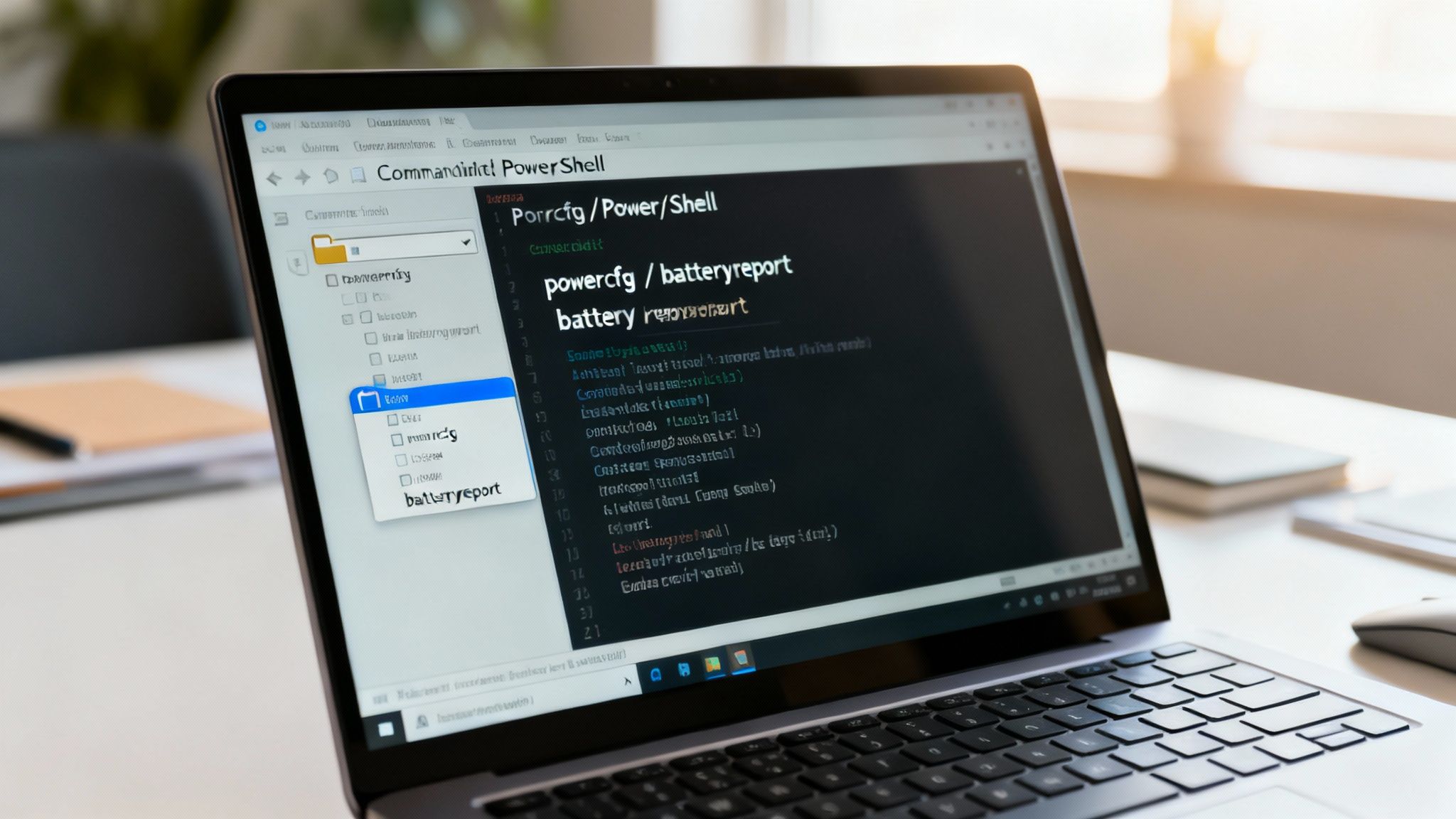
The moment you press Enter, Windows gets to work, analyses your battery, and saves a report as an HTML file. It even tells you the exact file path where it’s stored, so you don't have to go hunting for it.
What Do All These Numbers Mean?
Now for the fun part. Head over to the folder location shown in the PowerShell window and find the file named battery-report.html. Double-click it, and it'll open right up in your web browser.
It can look like a lot of data at first, but you really only need to pay attention to a couple of key figures to get the full picture.
The most crucial information is right at the top under the 'Installed batteries' section. Look for two specific lines: Design Capacity and Full Charge Capacity.
- Design Capacity is the maximum charge the battery was designed to hold when it was brand new. In our example, that's 52,520 mWh.
- Full Charge Capacity is what it can hold now. Here, it’s 48,440 mWh.
The gap between these two numbers is what tells you the battery's wear level. For this laptop, the battery can now only hold about 92% of its original charge. A little drop is normal, but a big one isn't.
What you're looking for is how close the Full Charge Capacity is to the Design Capacity. If it’s fallen below 80%, that's a pretty clear indicator that the battery has degraded significantly and you’ll be reaching for the charger far more often.
Another useful tidbit is the Cycle Count. This tells you how many times the battery has been fully drained and recharged. Naturally, a higher number points to an older, more heavily used battery.
If your report reveals a big drop in capacity, it might be time to think about what to do next. But before you start looking at costly repairs, why not find out what your faulty laptop could be worth? We buy devices with all sorts of issues, including battery problems. Fill out our straightforward sales form and get a quick, no-obligation quote today.
Checking Your MacBook's Battery Health
If you're a MacBook user, you're in luck. Apple has woven battery health information right into macOS, so you don't need any third-party apps or complex commands to see what's going on. It’s a refreshingly simple way to get a clear picture of your battery's condition.
The Quick Glance Method
For a speedy status update, there’s a neat little shortcut.
Just hold down the Option key on your keyboard and click the battery icon in your menu bar. A special dropdown menu will pop up, and right at the top, you'll find a clear condition status.
You’ll typically see one of two messages:
- Normal: All good. Your battery is functioning just as it should be.
- Service Recommended: This is Apple's polite way of saying your battery isn't holding as much charge as it used to. It’s still perfectly safe to use, but you’ll probably find yourself reaching for the charger more often.
This is brilliant for a quick check-in, but to get the full story, you need to dive into the System Settings.
Getting the Full Story: Capacity and Cycle Count
The two numbers that really matter are Maximum Capacity and Cycle Count. These stats give you the most accurate insight into your battery's longevity.
On recent macOS versions, head to the Apple menu, open System Settings, then select Battery. You'll see a Battery Health section with a little info 'i' button next to it – give that a click. If you're on an older version of macOS, you’ll find this under System Preferences > Battery > Battery.
Inside, you'll see the Maximum Capacity. This percentage shows how much charge your battery can currently hold compared to when it was brand new. A fresh-out-the-box MacBook will be at 100%, but this number naturally declines with every charge cycle.
Apple’s benchmark is that a battery is considered worn once its maximum capacity drops below 80%. When you hit this point, you'll really start to feel it – that work session in a Horley café or the commute from Coulsdon will feel a lot shorter between charges.
The other key metric here is the Cycle Count. A cycle is one full charge and discharge, though it doesn't have to happen all at once. Modern MacBook batteries are generally designed to keep up to 80% of their original capacity for about 1,000 charge cycles.
If you're looking at a high cycle count and a low maximum capacity, it’s a clear signal that your battery is getting tired and will need replacing soon.
Facing an expensive battery replacement? Don't just let your old MacBook gather dust. We buy Apple devices with battery faults all the time. Find out what your faulty MacBook could be worth by getting a quick, no-obligation quote from our online sales form.
What Your Battery Report Actually Means
So, you've managed to generate a battery report for your laptop, but now you're faced with a screen of technical jargon and numbers. It can feel a bit overwhelming, but buried in that data is the complete story of your battery's life.
Let's cut through the noise and translate these key stats into plain English. It's the most important part of learning how to check laptop battery health, because it tells you exactly where you stand.
Decoding the Core Metrics
Whether you're on a Windows machine or a MacBook, you're looking for two main numbers: what your battery could do when it was brand new versus what it can do now.
Here's the breakdown of what to look for:
- Design Capacity (Windows): Think of this as the gold standard. It’s the maximum amount of charge your battery was designed to hold the day it left the factory. It’s your baseline for a perfect battery.
- Full Charge Capacity (Windows): This is the honest truth of your battery's current state. It reveals the maximum charge it can hold today. The difference between this and the Design Capacity is what we call battery wear.
- Maximum Capacity (macOS): Apple keeps things simple by just giving you a percentage. A fresh MacBook should be at 100%. If yours is showing 85%, it means your battery can only hold 85% of the charge it could when you first unboxed it.
Another crucial piece of the puzzle is the Cycle Count. This number keeps a running tally of how many times your battery has gone from full to empty and back again. A high cycle count isn't necessarily a bad thing on its own, but it's a solid indicator of age and heavy use. Most modern laptop batteries are built to handle around 500 to 1000 cycles before their performance takes a noticeable dive.
For MacBook users, finding this information is incredibly straightforward.

This little flowchart shows just how quickly you can see if your Mac's battery status is 'Normal' or if it’s time to dig into the system details for a closer look.
Your Battery Health at a Glance
To make things even clearer, we’ve put together a quick guide to help you interpret your battery report's numbers and understand what they mean for your daily use.
These figures give you a practical diagnosis, helping you figure out if you're dealing with normal ageing or a more serious problem that needs attention.
When your battery's maximum capacity drops below 80%, it's officially considered significantly degraded. This is the tipping point where you'll really feel the performance drop, whether you're trying to work from a café in Redhill or on the train home to Merstham.
If your report shows a critical health status, don’t immediately assume you need an expensive repair. You have other options. We specialise in buying laptops with all sorts of faults, including worn-out batteries. Find out what your device could be worth by getting a free, no-obligation quote on our sales form.
Time for a Change? What to Do with a Failing Battery

So, you’ve run the tests, and the news isn't great. Knowing your battery is on its last legs is one thing, but figuring out what to do next can be tricky.
The general rule of thumb is that once your battery’s maximum capacity dips below 80%, you’re at a turning point. It’s no longer just a number in a report; it’s a problem that genuinely impacts how and where you can use your laptop.
A much more urgent sign is physical swelling. If you see the laptop case bulging or the trackpad being pushed up from underneath, that's a serious red flag. It’s a critical safety issue, and you need to stop using the device immediately.
Your Options When a Battery Fails
Facing a worn-out battery basically leaves you with two paths. You could opt for a professional replacement, which can certainly breathe new life into your machine. The catch? It often comes with a hefty price tag, sometimes running into hundreds of pounds for high-end models.
If your laptop is already a few years old, that cost can be a tough pill to swallow. You’d be sinking a lot of money into a device that’s likely already falling behind in performance and features. That’s when it’s time to consider a smarter alternative.
Instead of spending money on a repair, why not turn your faulty laptop into cash? A failing battery doesn't mean your device is worthless. Many of its other components still hold significant value.
It's an interesting problem. We've seen a huge leap in battery technology—statistics from UK repair guides show that 45% of laptops shipped recently had batteries over 6000 mAh, a massive jump from just 18% in 2020. Despite this, poor maintenance means the average lifespan is still stubbornly stuck at just 2-4 years. You can read more on this trend and get some great tips from the folks over at ConsumerTec.
A Smarter Alternative in Redhill and Beyond
Here at EXE, we specialise in buying electronics right across Redhill and the surrounding areas—even broken ones with battery faults. We offer a fast, fair, and incredibly simple way to get value from your old tech without the faff of a private sale or the cost of a repair.
Before you sell or dispose of any device, protecting your personal data is absolutely crucial. A great first step is to securely wipe your laptop's hard drive to make sure nothing is left behind.
Once your data is safe, getting a quote from us is easy. Just fill out our simple online sales form for a free, no-obligation valuation. We can even arrange a local collection from Redhill, Merstham, and nearby towns to make the whole process completely effortless. Why not turn that faulty tech into cash?
Your Top Battery Questions Answered
So, you’ve run the diagnostics and learned how to check your laptop battery health, but you might still be wondering about a few things. That’s completely normal! We get these questions all the time from folks around Redhill, so I’ve pulled together some quick, no-nonsense answers to the most common ones.
Should I Keep My Laptop Plugged in All the Time?
This is the big one, and the answer isn't a simple yes or no. The old myth about overcharging and destroying your battery is largely a thing of the past. Modern laptops are clever enough to stop charging once they hit 100%.
That said, it’s not the best habit. Keeping the battery constantly topped up, especially when it’s warm from use, puts a low but steady stress on its internal cells. Over months and years, this can speed up the natural wear process. A good middle ground I always suggest is to let it drain down to around 40-50% every now and then before plugging it back in.
What Exactly Is a "Charge Cycle"?
A ‘charge cycle’ isn't as simple as just plugging your laptop in. It’s the official measure of a full 100% to 0% discharge.
But here’s the thing: it doesn't have to happen all at once. Say you use 60% of your battery on Monday, charge it up overnight, and then use another 40% on Tuesday. That adds up to one complete 100% discharge, so it counts as a single charge cycle. It's one of the most important numbers in your battery report, telling you just how hard your battery has worked over its life.
Think of your battery like a car tyre. It has a finite amount of mileage before it wears out. Each charge cycle is like driving another few miles—perfectly normal, but it brings you a tiny bit closer to needing a replacement.
How Can I Make My Battery Last Longer?
The great news is that you don’t need special software or complicated tricks to get more out of your battery. Extending its daily life and its overall lifespan often just comes down to a few small, smart habits.
Here are some of the most effective things I’ve found work for most people:
- Dim Your Screen: Your display is a massive power hog. Just knocking the brightness down a few notches to a comfortable level can make a huge difference.
- Close Unused Apps: Programmes chugging away in the background are sneaky battery thieves. If you're not using it, close it.
- Avoid Extreme Temperatures: Whether it’s a freezing cold day in Merstham or a sweltering summer afternoon, batteries hate extreme temperatures. Try to keep your laptop in a moderate environment.
- Disconnect Peripherals: That external hard drive or webcam you have plugged in? They’re sipping power. Unplug anything you're not actively using to save that precious juice.
Adopting these habits will help you squeeze more screen time out of every charge and slow down that inevitable battery degradation.
If you've checked your battery and decided it's finally time for an upgrade, EXE is here to help. Instead of letting that old laptop with the dodgy battery gather dust, why not turn it into cash? We offer fair prices for devices, even those with battery faults. Get a fast, free, no-obligation quote by filling out our simple sales form today.