


Losing your contacts is a modern-day nightmare, instantly cutting you off from friends, family, and colleagues. The most straightforward way to back up your Android phone contacts is to use Google's built-in automatic sync. It’s a simple, set-and-forget tool that continuously saves your address book to your account, making it the easiest way to keep everything safe and sound.
Why You Absolutely Need a Contact Backup
We’ve all had that heart-in-your-throat moment. Your phone slips, tumbles through the air, and lands screen-down on the pavement. It won't turn on. In that instant, it’s not just the device you’re worried about; it’s all the priceless information locked inside. Losing your contact list can feel like losing your connection to the world.
Your contacts are the digital glue holding your life together, from your closest family to vital work colleagues. For our neighbours here in Redhill, Merstham, and the surrounding Surrey towns, that might be the number for a trusted local plumber you just can't afford to lose. Trying to rebuild that list from scratch is a massive headache nobody needs.
The Real-World Risks of Not Backing Up
Let's face it: phones get lost, stolen, or just give up the ghost without warning. A solid backup is your only real safety net when disaster strikes. Just picture getting a new phone and realising you have to spend hours messaging people for numbers you used to have saved. It's a pain.
This is why having a reliable backup plan isn't just a good idea—it's essential. The good news? It's never been easier. The impact of modern backup habits on data loss prevention is huge. Back in 2015, around 30% of UK Android users admitted to losing contacts because they didn't have a backup. Today, that number has plummeted to just 8%, mostly thanks to automated cloud services like Google's own Contacts Sync. You can see how far backup tech has come by reading about these Android backup insights.
Simply put, a contact backup is your insurance policy against digital disaster. It ensures that no matter what happens to your device, your connections remain intact and easily accessible.
Whether you're thinking of selling your old phone or just want some peace of mind, taking a few minutes to set up a backup is one of the smartest tech moves you can make. And if you are upgrading, we can help you get a great price for your old device and ensure your data is handled securely. Just fill out our sales form for a quick quote.
The Easiest Method: Syncing with Your Google Account
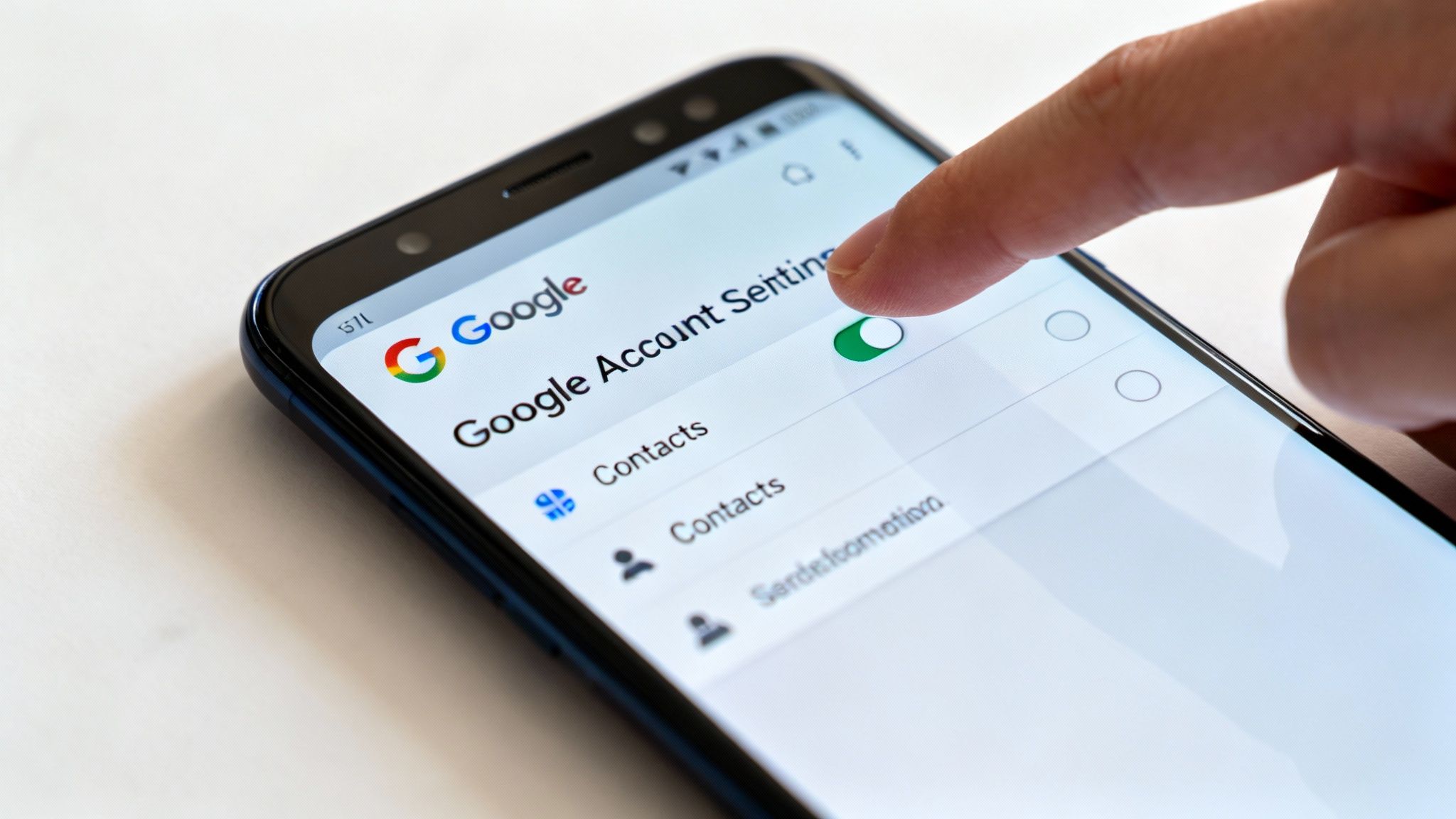
For most Android users, the simplest and most reliable way to keep contacts safe is by using your Google account. It's the ultimate "set it and forget it" solution, working quietly in the background to create a digital safety net for your address book.
Honestly, this is the method we recommend to almost everyone who comes to us for advice in our Redhill shop. The beauty of it is that once you've turned it on, you're done. Every new number you save or detail you update is automatically mirrored to your Google account in real-time.
This means your contacts are always up-to-date and accessible from anywhere—your laptop, tablet, or a shiny new phone. Just sign in to your Google account, and they’ll all be right there waiting for you.
How to Check Your Google Sync Settings
There's a good chance your phone is already handling this for you, but it never hurts to be sure. A quick check takes less than a minute.
Here’s where to look:
- First, open up your phone’s Settings app.
- Scroll down and tap on Google, then head into your Google Account.
- From there, you’ll want to find something like Google Account settings and then Google Contacts sync.
- Inside, you'll see the sync status. Just make sure the toggle for Automatically back up & sync device contacts is switched on.
And that's it! Your phone will take care of the rest. This seamless backup is a huge deal, especially here in the UK where Android is so popular. With Android holding over 50% of the mobile market share in the UK as of early 2025, it shows just how many of us depend on this feature to prevent losing our contacts. In fact, studies show that over 70% of UK users rely on Google’s built-in tools for their backups. If you're curious, you can explore more UK mobile trends on Statista.
The single best thing about Google Sync is that your backup is always current. You don't have to remember to do it manually; it just happens. This continuous protection is invaluable.
For a clearer picture, here’s a quick rundown of what using Google Sync really means for you.
Google Sync Backup at a Glance
As the table shows, this isn't just a backup; it's a live, synchronised copy of your address book, making data loss a thing of the past.
Why Google Sync Is So Reliable
Unlike a manual backup, which is just a snapshot in time, Google Sync is a living, breathing copy of your contacts list. If you lose your phone on a Monday, the number you saved on Sunday evening is already safe in the cloud.
That’s a massive advantage. There are no cables to plug in or files to export. Whether you're in the office or on holiday, you can rest easy knowing your contacts are protected. If you run into any trouble or need help preparing a device for sale, our team is always here to help. Just get in touch through our online form for some friendly advice.
Creating an Offline Backup with a VCF File
While Google Sync is a brilliant safety net for your contacts, we always recommend having a separate, offline copy as well. Think of it as a digital photocopy of your address book, tucked away somewhere safe just in case. This is where a VCF file, also known as a vCard, is your best friend.
A VCF file is simply a universal format for contact information. It neatly bundles every name, number, email, and address into a single, portable file. The beauty of this method is that it gives you total control. It's perfect for creating a permanent archive or if you're planning to move your contacts to something that isn't an Android, like an iPhone or your computer.
Exporting Your Contacts to a VCF File
Getting this file off your phone is surprisingly straightforward and only takes a moment. The exact menu names might differ a bit between a Samsung and a Google Pixel, for instance, but the core steps are pretty much the same on any Android device.
Here's the general process we follow:
- First, open up your phone’s Contacts app.
- Tap the menu icon (usually three dots or lines) to find the settings.
- Look for an option called "Import/Export" or sometimes "Manage contacts".
- Choose the option to "Export to .vcf file" (or something similar).
- Finally, pick a location to save it. We usually just pop it in the "Downloads" folder to keep things simple.
Just like that, your phone will create a single file, often named contacts.vcf, holding your entire address book. You now have a complete, offline backup of every contact you own.
Keeping Your VCF Backup Safe
Now that you have your VCF file, the crucial next step is getting it off your phone. A backup isn't much use if it's on the same device that gets lost, stolen, or broken!
Here are a few smart places to store it:
- On Your Computer: A simple drag-and-drop to your laptop or desktop is a great first line of defence.
- A USB Stick: For a truly physical, offline backup, you can't beat a basic USB drive. Stick it in a drawer, and you know it's safe and sound.
- Cloud Storage: Services like Dropbox or OneDrive are fantastic for keeping your file secure but accessible from anywhere.
Having a VCF file gives you true ownership of your contact list. It’s a point-in-time snapshot that isn’t dependent on any single account or service, providing ultimate peace of mind.
Occasionally, you might want to package this VCF with other files, perhaps in a compressed folder for easy emailing. If you ever find yourself needing to get it out again, knowing how to extract ZIP files is a handy skill to have for managing all sorts of backups.
This is a step we always advise people to take before selling their old phone. Before you bring your device to us in Redhill, creating a VCF backup ensures your contacts are ready for whatever new device you get. For a quick, hassle-free quote on your old tech, just fill out our sales form, and we'll take care of everything else.
Exploring Manufacturer and Third-Party Backup Tools
While Google's built-in sync is fantastic, sometimes you want a more robust, local backup. This is where your phone manufacturer’s own software often comes in handy. These tools are usually designed to create a complete mirror image of your device – we're talking contacts, photos, apps, even your customised settings – saved right onto your computer. Think of it as the ultimate safety net.
A brilliant example of this is Samsung Smart Switch. If you own a Samsung device, this free piece of software is an absolute must-have. It lets you plug your phone into a PC or Mac and create a full backup with just a few clicks. It’s incredibly thorough and something we often recommend to our customers in Redhill who want a complete, offline copy of their phone's contents before getting a new one.
Using Manufacturer Tools Like Samsung Smart Switch
Getting started with these dedicated tools is almost always a breeze. You’ll typically install the program on your computer, connect your phone via a USB cable, and then just follow the simple on-screen instructions to kick off the backup.
The real beauty of these tools is that they go far beyond just contacts. You can usually save:
- Your full call history and text messages
- All your photos, videos, and music files
- App data and even your home screen layout
- System settings, alarms, and Wi-Fi passwords
This type of all-in-one backup is perfect if you’re upgrading to a new phone from the same brand. It makes the new device feel like your old one, right out of the box.
Finding Trusted Third-Party Apps
What if your phone's manufacturer doesn't offer a specific tool, or you just prefer to use something different? The Google Play Store is filled with third-party backup apps. The key here is to choose wisely, prioritising security and a good user experience. We always tell people to look for apps with thousands of positive reviews and a crystal-clear privacy policy.
Our rule of thumb is this: a good third-party app should let you easily schedule automatic backups and give you total control over what you want to save. Always read the recent reviews to see what real-world experiences people are having.
This simple flowchart can help you figure out if creating a separate offline VCF file is a good move for you.
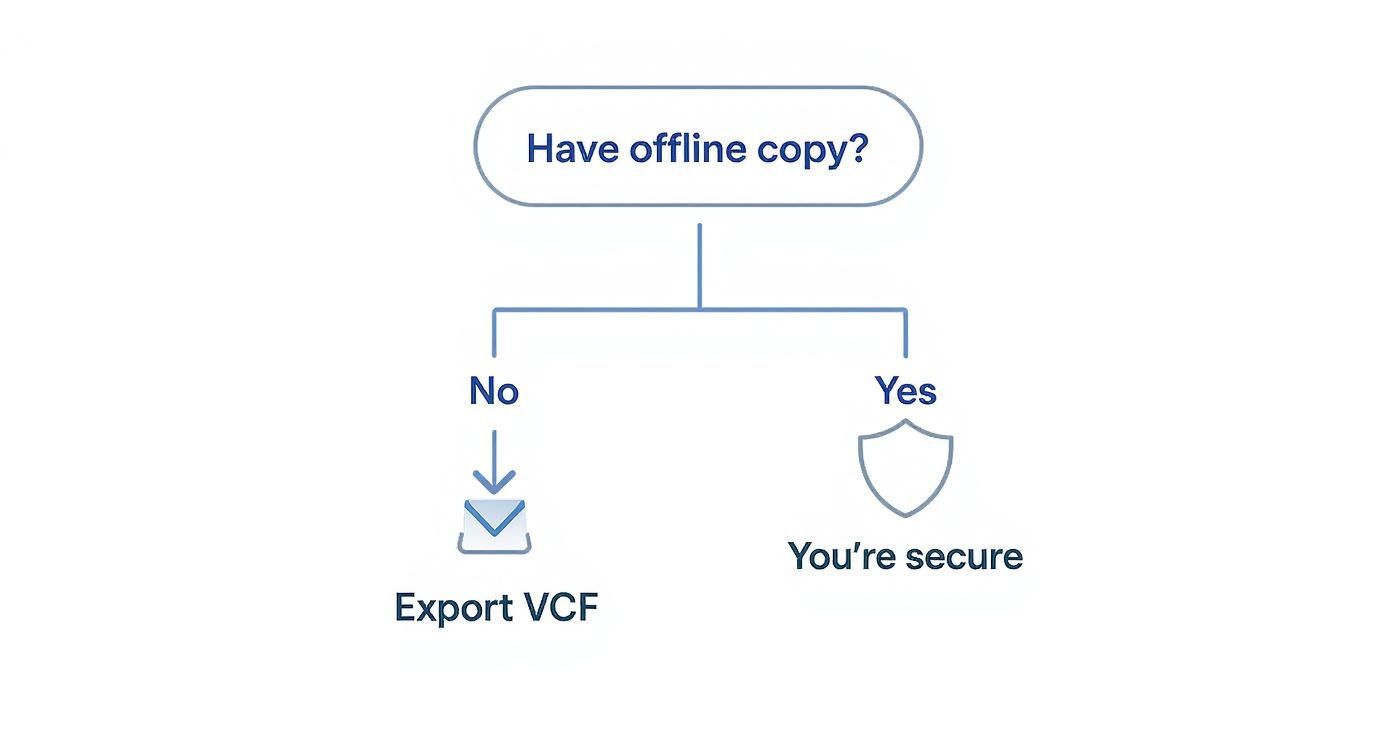
As you can see, having that offline copy is what truly gives you complete peace of mind. It’s your fallback if anything ever goes wrong with your online accounts.
The way people in the UK handle their Android backups has changed dramatically. Back in 2015, only about 45% of users regularly backed up their contacts, often resorting to clumsy methods like Bluetooth transfers. Now, in 2025, that figure has jumped to over 80%, with most of us rightly relying on automatic cloud services. For a deeper dive into additional Android features and resources, exploring these dedicated manufacturer and third-party tools is a fantastic starting point.
No matter which route you take, having that extra backup gives you another layer of security. It means you’re covered, no matter what. If you need a hand with any of this, feel free to contact us through our sales form.
Getting Your Phone Ready for Sale or Repair
So, you're about to sell your old phone or bring it to our shop in Redhill for a repair. Before you hand it over, there are a few final checks you absolutely must do to protect your personal data. Think of it as a pre-flight checklist for your phone—it’s the only way to be sure your information stays private.
First things first, have one last look at your backups. We know we've just gone through all the methods, but it pays to be certain. Whether you've used Google Sync or exported a VCF file, just take a moment to confirm it all went smoothly. The quickest sanity check for a Google backup is to pop over to contacts.google.com on a laptop or PC and see if everyone is there.
Signing Out and Wiping Clean
Once you're happy that your contacts are safe and sound, the next job is to sign out of your Google account on the device itself. Honestly, this is a step so many people miss, but it's absolutely critical. If you don't, it can cause all sorts of activation lock headaches for the new owner and, more importantly, could leave your account vulnerable.
It’s a straightforward process. Just head into your phone's Settings:
- Find the section called Accounts or sometimes Users & Accounts.
- Tap on your Google account in the list.
- You should see an option to Remove Account – tap it and confirm.
Doing this properly severs the link between that specific handset and your entire Google world, from your emails and calendar to your saved passwords. It's a non-negotiable security step.
Wiping your phone is more than just deleting a few pictures. It's about making your personal data completely unrecoverable by anyone else. To do that, and to stay GDPR-compliant, a full factory reset is the only real solution.
The Final Step: A Full Factory Reset
This is the big one. Performing a factory reset wipes everything from your phone’s internal storage, returning it to the exact state it was in when you first took it out of the box. It’s the ultimate data privacy measure, guaranteeing no digital breadcrumbs are left behind for someone else to find.
You'll find the option tucked away in your Settings menu, usually under System > Reset options. Look for the one labelled "Erase all data (factory reset)".
Your phone will probably ask you to confirm a couple of times, just to be sure – because once you do it, there’s no going back. Proceed, and the device will restart, completely fresh and clean.
For anyone in Merstham or the surrounding areas looking to sell on their device, following these steps gives you total peace of mind. If you feel a bit out of your depth or just want a hand making sure it's all done correctly, our team is always here to help. Just drop us a line using our sales form, and we'll happily guide you through it.
Common Questions About Backing Up Contacts
We get asked about backing up phone contacts all the time here at our shop in Redhill. It’s a really common worry, but thankfully, the solutions are usually straightforward. To help clear things up, we've pulled together the answers to the questions we hear most often.
People often ask about the different ways to back up contacts and whether it’s worth having more than one backup. Honestly, it’s a smart move.
How Can I See if My Contacts Are Already Backed Up to Google?
This is easily the number one question we get, and the great news is that checking is incredibly simple. You don't even need your phone with you to do it.
Just open a web browser on any computer or tablet and go to contacts.google.com. Make sure you sign in with the exact same Google account that’s on your Android phone. If you see your full contact list pop up on the screen, fantastic – your automatic backup is working perfectly!
If the list is empty or looks old, it’s a quick fix. Grab your phone, go to Settings > Accounts, tap on your Google account, and check that the sync switch for 'Contacts' is turned on.
What Is the Difference Between Google Sync and a VCF File?
This is another brilliant question. While both methods save your contacts, they work in fundamentally different ways.
- Google Sync is a live, automated process. It constantly keeps your contacts updated with Google's servers. Think of it as a living, breathing copy of your address book that’s always current.
- A VCF file is a manual backup. It’s like taking a single snapshot of your entire contact list at one specific moment in time.
Our advice? Use both. Rely on Google Sync for your daily, automatic protection, but also create a VCF file every few months and save it somewhere safe. It's the best way to have complete peace of mind.
How Do I Get My Contacts onto a New Phone from a Google Backup?
Getting your contacts onto a new phone is the easiest part of the whole thing. When you first set up your new Android device, it will ask you to sign in with your Google account.
Just pop in the same details you used on your old phone. The device will then automatically start pulling in all your data from your account, including your contacts. Within a few minutes, your entire address book should appear in the Contacts app, just like it was on your old device. It’s a brilliant, hassle-free way to make a new phone feel familiar straight away.
If you're upgrading your device and want to sell your old one, or if you're hitting a wall with your backups, EXE is here to help. Our team, right here in Redhill, can walk you through securing your data and offer you a great price for your old tech. For a quick, no-obligation quote, just fill out our simple sales form.