


So, you’ve decided to trade in your old iPhone for a shiny new model. Fantastic! Before you get a great offer, there’s a crucial little bit of housekeeping you absolutely can’t skip: exporting your contacts. This isn't just about making life easier later; it's a vital step for keeping your personal data safe and making sure you don't accidentally lose touch with everyone you know.
Why You Absolutely Must Export Your Contacts First
Ready to sell your iPhone and pocket some cash? Whether you’re popping into our shop in Redhill or you're just down the road in Merstham, taking a few minutes to back up your contact list is one of the smartest moves you can make. Trust me, it’s a simple task that saves a world of headache later.
Leaving personal information on a phone you’re about to sell is a huge security no-no. Your contacts list is more than just a collection of phone numbers; it’s a goldmine of private details like email addresses, home addresses, and birthdays for your friends, family, and work colleagues. If you don't export your iPhone contacts before wiping the device, that sensitive info could potentially be recovered by its new owner.
Keep Your Personal Data on Lockdown
Think about it—your contacts are basically the digital address book for your entire life. Keeping this information safe is non-negotiable, and exporting gives you a secure copy that you control. This makes the switch to a new phone completely seamless, without a single number lost.
This is a big deal for everyone in the UK, where the iPhone commands a massive market share. With a thriving second-hand electronics market, millions of us need to lock down our data before trading in our old tech. You can discover more insights about iPhone usage trends if you're curious.
The Upside of a Fresh Start
By backing up your contacts, you can confidently hit that factory reset button knowing you aren't deleting the only copy of your precious network. A properly wiped phone is also far more attractive to buyers, ensuring the whole transaction is smooth and secure for everyone involved.
Exporting your contacts is the final, crucial checklist item before securely wiping your iPhone. It guarantees your personal network stays with you, while your old device gets a completely fresh start for its next owner.
Once your contacts are safely tucked away, you're ready to go. After backing everything up, you can wipe your device clean with total peace of mind. Then, it's time for the fun part—get a free, no-obligation quote by visiting our secure sales form and turn that old phone into cash.
The Easiest Way to Export Your Contacts: Straight From iCloud
If you're looking for the most straightforward way to get your contacts off your iPhone, iCloud is your best bet. Honestly, for most people, this is the only method you'll ever need. It’s built right into your iPhone, so there are no extra apps to download or confusing settings to wrestle with. Think of it as Apple's own 'easy button' for backing up your address book.
First things first, let's make sure your contacts are actually syncing with iCloud. It’s a quick check that’ll save you a headache later.
Grab your iPhone and let’s take a look:
- Open up the Settings app.
- Tap your name right at the top to get into your Apple ID settings.
- Choose iCloud from the menu.
- You'll see a section called "Apps Using iCloud." Tap Show All.
- Now, just scroll down and find Contacts. Is the little toggle next to it green?
If it's already on, fantastic—you're good to go. If it's switched off, just tap it. Your iPhone will probably ask if you want to merge your contacts. Say yes by tapping Merge, and it’ll start uploading your address book securely to your iCloud account.
Getting Your Contacts Out of iCloud
Right, with the sync sorted, the rest of the job happens on a computer. It doesn’t matter if you’re on a Mac or a Windows PC; just open up your favourite web browser.
You’ll need to head over to the official iCloud website and log in with your Apple ID. Once you're in, you'll see a collection of familiar icons. Click on the Contacts one—it’s basically a web-based twin of the address book on your phone. From here, you can select every single contact with just a couple of clicks and download them all in one go.
It's a bit like making a perfect digital photocopy of your address book. You aren't actually deleting anything from your phone; you're simply creating a separate, safe copy that you can store anywhere or move to a new device.
The file you’ll download is what’s known as a vCard (you’ll see it has a .vcf file extension). This is the industry-standard format for contact information, which is great news for you. It means pretty much any device or service—whether it's an Android phone, a Google account, or Microsoft Outlook—will know exactly what to do with it.
Once that file is downloaded and saved somewhere safe, you're one step closer to wiping your old iPhone without a worry in the world. Knowing your entire network of contacts is backed up makes the whole process of selling your phone far less stressful. And with that sorted, why not get a fast, free quote by filling out our simple sales form? You might be surprised how much cash you could get for your old tech.
Other Reliable Ways to Back Up Your Contacts
While iCloud is a fantastic, built-in tool, I know it’s not everyone's cup of tea. If you don't use it, or maybe you're planning a switch to an Android device, don't worry. There are several other rock-solid methods to export your iPhone contacts securely.
A popular choice for many, especially if you're moving between different phone ecosystems, is using a Google Account. It just makes things incredibly simple. Another great option is to use your computer. For those with newer Macs, Finder is your go-to tool, while older Macs and Windows PCs can use the trusty iTunes application. These methods create a full backup of your device, including your entire address book, giving you an extra layer of security.
This decision tree gives you a quick visual guide on which path to take.
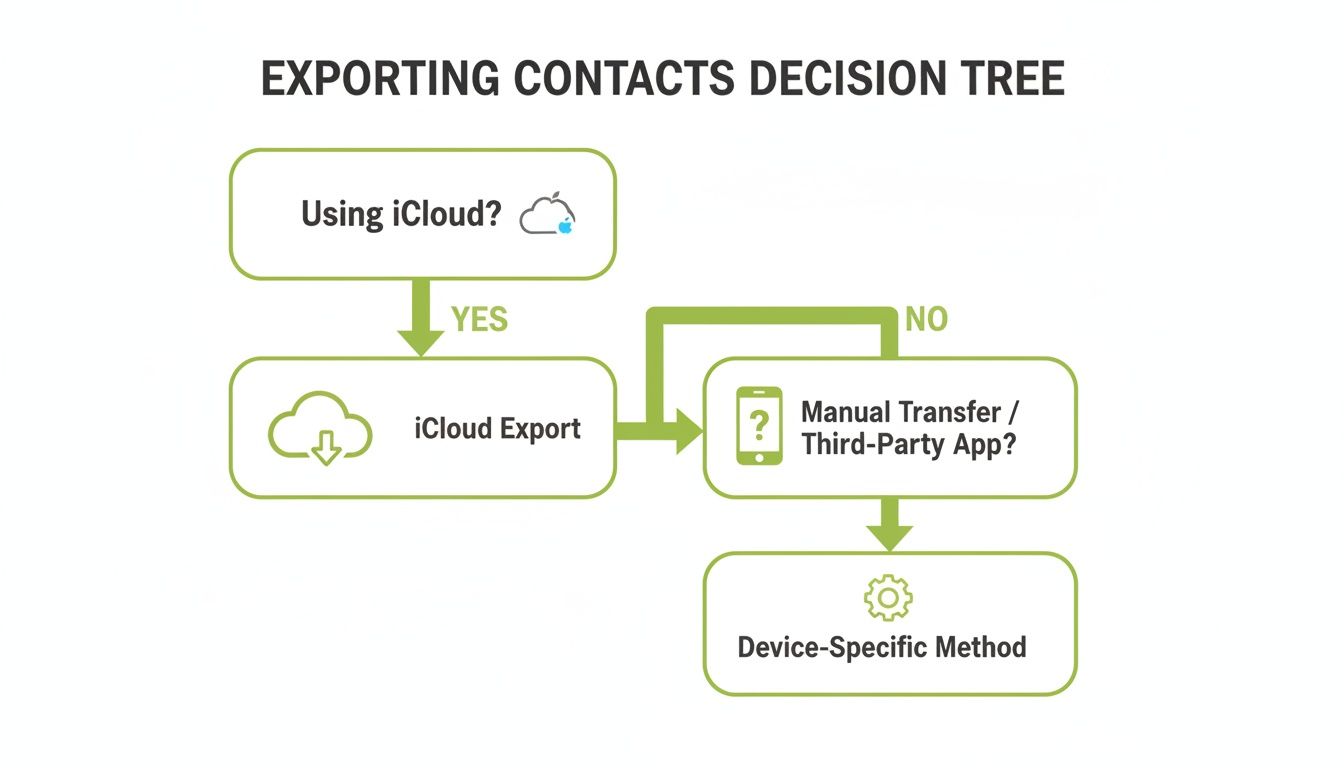
As you can see, your first choice determines the next steps, but both paths lead to a secure backup of your contacts.
Comparing iPhone Contact Export Methods
Here's a quick look at the most common methods, helping you pick the one that best fits your needs.
Both options are great, but they serve slightly different purposes. Google Sync is all about convenience and accessibility, whereas a computer backup is about creating a comprehensive, secure archive.
Using Google to Sync Your Contacts
If you use Gmail, syncing your iPhone contacts is an absolute breeze. From my experience, it’s the perfect way to keep your address book consistent across all your devices, not just your phone.
Here’s how to get it set up:
- First, head to Settings on your iPhone.
- Scroll down and tap on Contacts, then tap Accounts.
- Choose Add Account and select Google from the list.
- Sign in with your Google account details.
- Crucially, make sure the toggle for Contacts is switched on (it should be green).
And that’s it! Your iPhone will now automatically sync your contacts with your Google Account. It's a "set it and forget it" solution that works seamlessly in the background. Once your contacts are out of your iPhone, you might want to get them organised elsewhere; here's a handy guide on how to safely import contacts into Google.
Backing Up with Finder or iTunes
For those who prefer a local backup stored on their computer, Finder (on macOS Catalina and newer) or iTunes (on older Macs and Windows) is the way to go. This approach backs up your entire phone, which is brilliant for total peace of mind.
This method is less about exporting just the contacts and more about creating a complete snapshot of your phone. It's a great fail-safe before you perform a factory reset.
The UK's electronics buyback sector sees a huge spike in iPhone trade-ins during upgrade cycles. For many sellers, exporting contacts is the first step to avoid data breaches. Data security is paramount, especially when so many iPhones are destined for refurbishment.
We often find that the average user has around 1,200 contacts, so making sure they're secure is a vital step before we arrange a home collection for our customers in Redhill or nearby towns.
Whether you choose the convenience of Google sync or the thoroughness of a computer backup, your data will be safe. Once your contacts are secured, you're ready for the final step before selling. Get a quote for your old phone by visiting our secure sales form.
Confirming Your Backup and Wiping Your iPhone Clean
Right, you’ve managed to export your iPhone contacts, which is brilliant. Before you celebrate, though, it’s always a good idea to double-check that your backup actually worked and that all your contacts are safe and sound. Think of it as looking both ways before crossing the road—a quick, simple check for total peace of mind.
The easiest way to verify everything is to just open the vCard (.vcf) file you downloaded. On a Windows PC or a Mac, you can usually just double-click it, and it'll pop right open in your default contacts app. Have a quick scroll through—are all the names and numbers you'd expect to see there?
If you went the Google route, just log into your Google account on a web browser and head over to the Contacts section. You should see your full, up-to-date address book waiting for you.
The Final Steps Before Saying Goodbye
Once you're confident that your contacts are tucked away safely, it's time for the most critical security step: wiping your iPhone clean. This process erases all your personal data—photos, messages, app logins, everything—ensuring the next owner gets a device that feels brand new, with no trace of your information left behind.
Before you hit that big red reset button, there are two crucial things you must do:
- Sign Out of Your Apple ID: This is what disconnects your phone from your personal iCloud account.
- Turn Off 'Find My': This is a key anti-theft feature. If you leave it on, it can cause major headaches for the new owner. Your phone will usually prompt you to do this when you sign out of your Apple ID anyway.
With those two steps sorted, you're ready for the main event.
Performing a Full Factory Reset
This is the point of no return, so be absolutely certain your contacts and any other important bits and pieces are backed up.
To wipe your phone, head to Settings > General > Transfer or Reset iPhone. From there, you'll want to choose Erase All Content and Settings. Your iPhone will ask for your passcode and then your Apple ID password just to be sure. Once you enter them, the process will kick off. It might take a few minutes, but when it’s finished, your phone will restart to the original "Hello" setup screen, just like it was out of the box.
From our experience, data security is the number one reason UK iPhone owners take the time to export contacts before selling. For small businesses in areas like Redhill offloading entire fleets of devices, our GDPR-compliant wiping process is a massive draw.
After you've backed up your contacts and are ready to wipe your iPhone clean, it's equally important to understand how to properly get rid of the device itself. For comprehensive guidance on this critical step, especially for business fleets, learn how to dispose of old iPhones securely.
With a clean, secure device, you're all set to get the best possible price. Just fill out our simple sales form to get your free quote today.
Troubleshooting Common Contact Export Issues
Even when you follow the steps perfectly, technology can sometimes throw a spanner in the works. It’s a frustrating moment: you export your contacts from iCloud, open the file, and realise half of your address book seems to have vanished.
Don't panic! This is a really common hiccup, and the fix is usually quite simple.
More often than not, the culprit is that your contacts aren't all stored in one place. Over the years, you've likely saved numbers under different accounts – some might live in iCloud, while others are linked to your Gmail, a work email, or even an old Yahoo account. When you export from just one source, you’re only getting part of the picture.
Figuring Out Where Your Contacts Live
Before you can get a complete backup, you need to play detective and find out where all your contacts are hiding. Luckily, your iPhone makes this a pretty quick investigation that will solve most export mysteries.
Here’s how to see which accounts are syncing contacts on your device:
- First, open up the Settings app.
- Scroll down a bit until you find Contacts and give it a tap.
- From there, tap on Accounts.
You'll now see a list of every single account connected to your phone (iCloud, Gmail, Outlook, etc.). Tapping on each one shows you exactly what that account is syncing – look for the 'Contacts' toggle. This screen is your roadmap to a complete backup.
If you see multiple accounts with the "Contacts" toggle switched on, that’s your answer. You'll need to export from each of those services to get a full and complete list of everyone you know.
Dealing with Sync Errors or Incomplete Exports
Another classic problem is a sync that hasn't quite finished. If you've just enabled iCloud Contacts for the first time, for example, it can take a while for everything to upload, especially if your internet connection is a bit slow or you have thousands of contacts.
A good tip is to connect your iPhone to Wi-Fi, plug it into a charger, and just leave it for a bit. This gives it the time and power it needs to finish the job properly before you attempt an export.
Sometimes, the simplest solution is the good old "turn it off and on again" trick.
By heading back to Settings > Contacts > Accounts, you can select the problematic account, switch the Contacts toggle off for a moment, and then switch it back on. This often forces a fresh sync and resolves any stubborn errors that were holding things up.
Getting this right is crucial. Once you have a complete and verified backup from all your sources, you can move forward with confidence. You’ll be ready to wipe your device for its new owner, knowing every important number is safe and sound.
At that point, getting a great price for your old phone is the final step. Our team, based right here in Redhill, is ready to help. Just fill out our secure online form to get a free, no-obligation quote.
Common Questions About Exporting iPhone Contacts
We hear from loads of people around Redhill who are getting ready to sell their old iPhones, and there are always a few questions that pop up. If you're trying to export your iPhone contacts, you've probably had some of the same thoughts. Let's clear up the common sticking points so you can get your contacts backed up and move on with confidence.
What Is a VCard or VCF File?
You'll see "vCard" or ".vcf" mentioned a lot when you're looking up how to save your contacts. The simplest way to think of it is as a digital address book file. It takes every single contact—names, numbers, emails, the lot—and wraps them up into one tidy file that almost anything can read.
The beauty of the vCard format is that it's a universal standard. That means whether you're moving to an Android phone, importing into your Google account, or even pulling them into Microsoft Outlook, that single .vcf file will just work. No drama, no fuss.
Will Exporting Delete My Contacts?
This is a big one, but I can put your mind at rest: absolutely not. Exporting is just a fancy word for copying. You’re simply creating a safe copy of your address book to keep somewhere else. All of your original contacts will stay exactly where they are on your iPhone, completely untouched.
The actual wiping of your phone comes much later. Once you’re 100% sure your contacts are safely backed up, you'll perform a factory reset. That’s the step that erases everything before you sell it.
Peace of mind comes from knowing you have a complete, verified backup of your contacts before you even think about wiping your device. It separates the backup process from the data deletion process, removing any risk of accidental loss.
What If My Contacts Are in Both iCloud and Gmail?
This is an incredibly common scenario. Over the years, it's so easy for contacts to get saved to different accounts without you even realising it. You might have some in iCloud and others tied to your Gmail.
The safest bet here is to export both lists separately. That way, you know for sure you haven't missed anyone.
- First, pop onto a computer, log into the iCloud website, and export your contacts from there.
- Next, open a new tab, head over to Google Contacts, and do the same for that list.
This two-pronged approach ensures you have a complete backup from every source. If you're not sure where your contacts are syncing from, you can check on your iPhone by going to Settings > Contacts > Accounts.
My Contacts Are Backed Up… Now What?
Brilliant! With your data safely copied, the final steps are all about preparing your iPhone for its new owner. The goal is to make sure not a trace of your personal information is left behind.
Before you do anything else, make sure you have:
- Signed completely out of your Apple ID and iCloud.
- Turned off the 'Find My' feature.
- Performed a full factory reset to erase all content and settings.
Once your iPhone restarts and you see that friendly "Hello" screen, it's officially ready to go. Now you're all set to get a great price for it.
Now that your data is secure and your device is ready, let EXE turn that old tech into cash. We make the process simple and convenient for our customers in Redhill, Merstham, and the surrounding areas. Head over to our secure sales form at https://www.exe.co.uk/#form to get your free, no-obligation quote today.